Take payment
Take cash, UPI, card, or a mix of them, and give the right change.
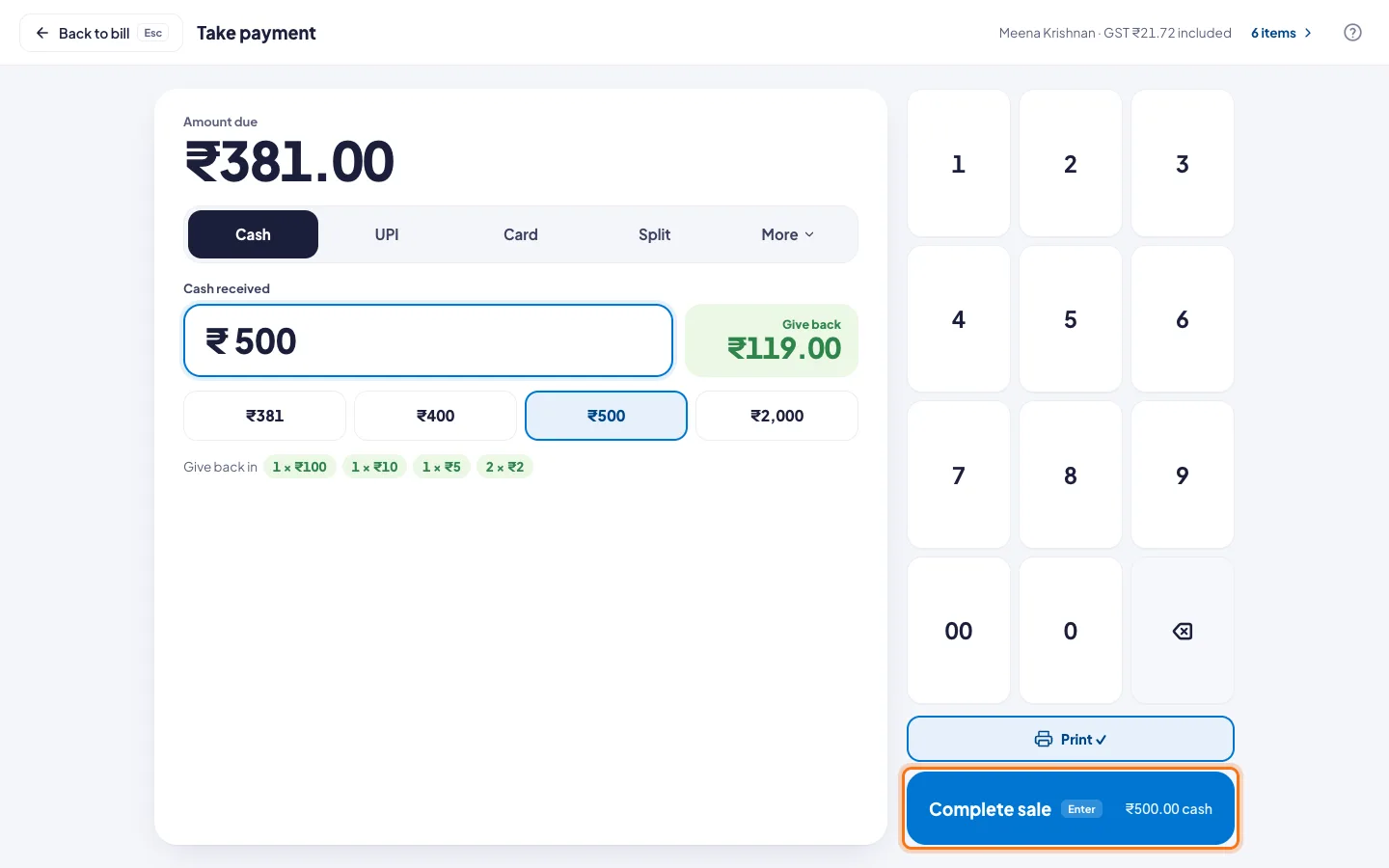
Cash
- Click Pay, or press F12.
- Cash is picked already.
- Tap the note the customer gave you, for example ₹500, or type the amount on the keypad.
- dhivi POS shows what to Give back, and in which notes.
- Click Complete sale, or press Enter.
UPI
- Click UPI.
- The customer scans the QR on the screen. It is for the exact amount.
- Check the payment on the customer's phone.
- If you like, type the UPI reference from their screen.
- Click the received button, for example ₹381.00 received.
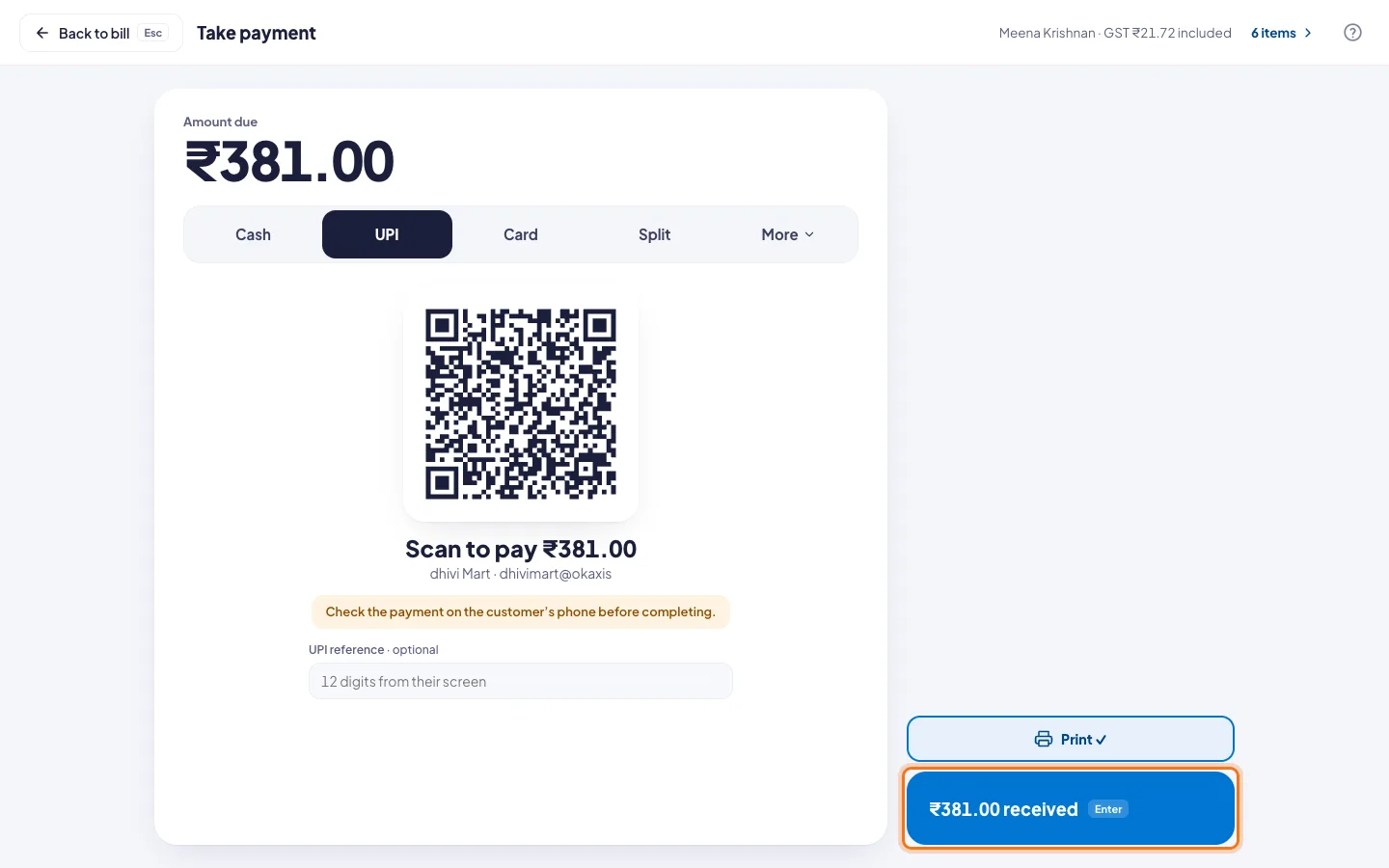
The QR needs the shop's UPI ID. See Show a UPI QR on every bill.
Card
- Click Card and take the payment on your card machine.
- If you want it on the receipt, type the card authorisation or the last 4 digits.
- Click Complete sale.
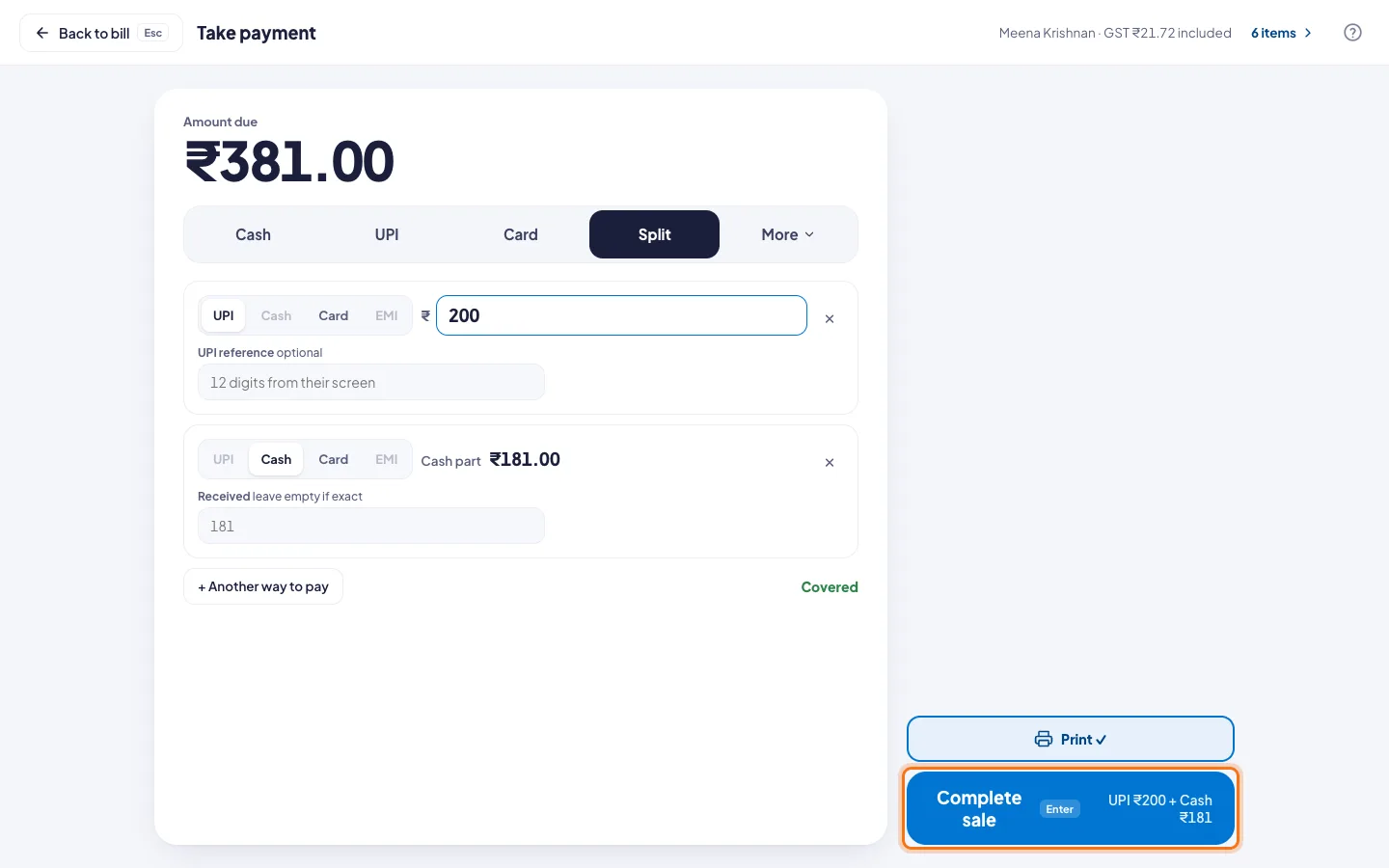
Part UPI, part cash
- Click Split.
- For the first part, pick UPI, Cash or Card, and type the amount.
- The last part takes what is left. Click + Another way to pay to add one more.
- When it says Covered, click Complete sale.
More ways to pay
Click More for:
- Store credit and Points, when the customer has them.
- Gift voucher: scan or type its code. See Sell gift cards.
- On account: the customer pays later. See Collect dues and send statements.
- EMI, inside Split. See Sell on EMI with a finance partner.
Good to know
- Print ✓ means the bill prints by itself. Tap it to turn printing off for this sale.
- Changed your mind? Click Back to bill, or press Esc.
- Next: print or share the bill.