Make a bill
Scan or pick the items, check the total, then take payment.
Add items
- Scan the barcode. The item goes on the bill.
- No barcode? Type part of the name in Scan, or search for a product… at the top. The list on the left shows what matches. Press Enter to add the first one.
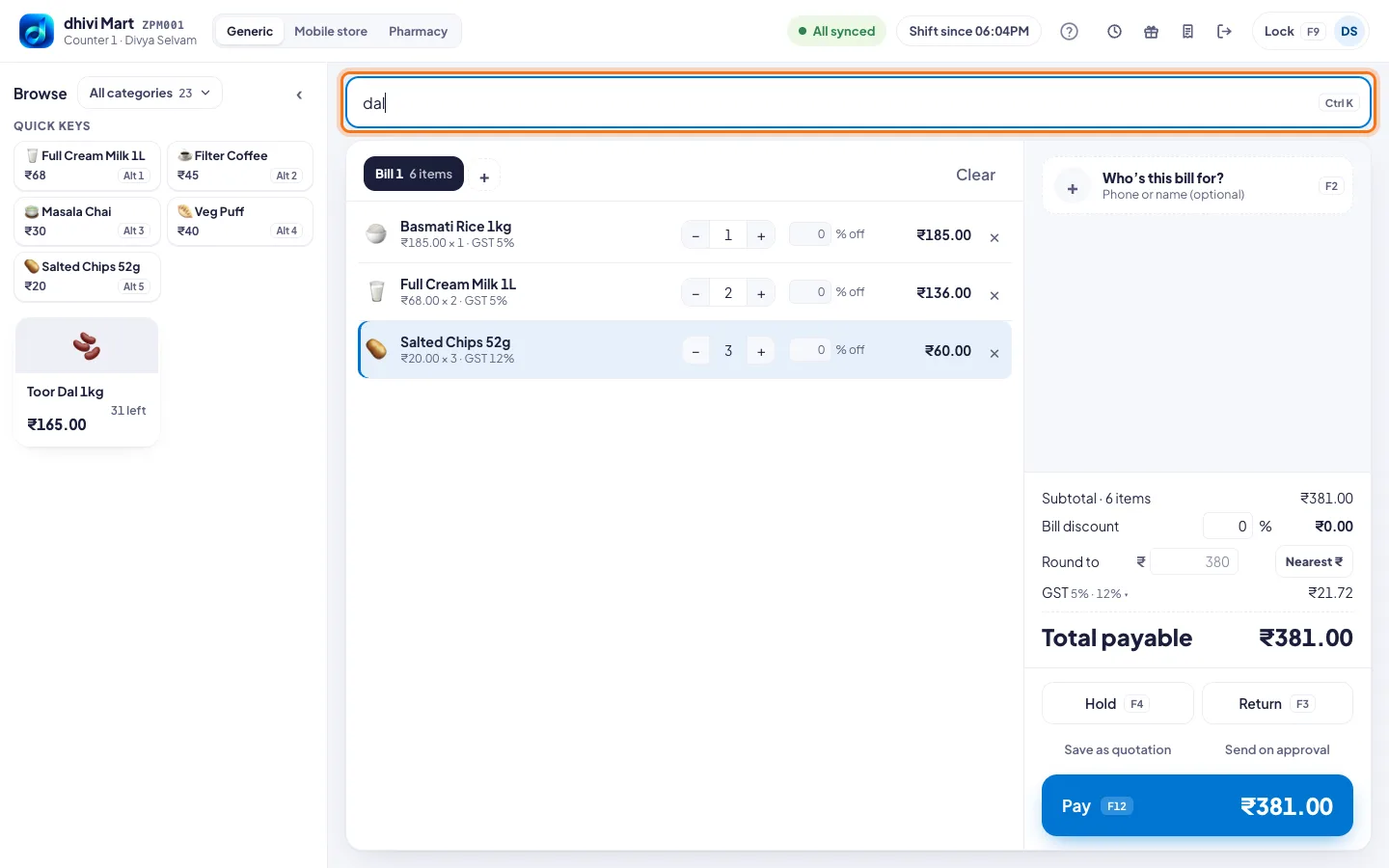
- Or tap the item in the list on the left. All categories narrows the list to one category.
- Items without a barcode, like milk, can have a Quick key. Tap the key, or press Alt 1 to Alt 8.
Change the quantity
- Tap + or – on the item's line, or type the number.
- Tap × to take an item off the bill.
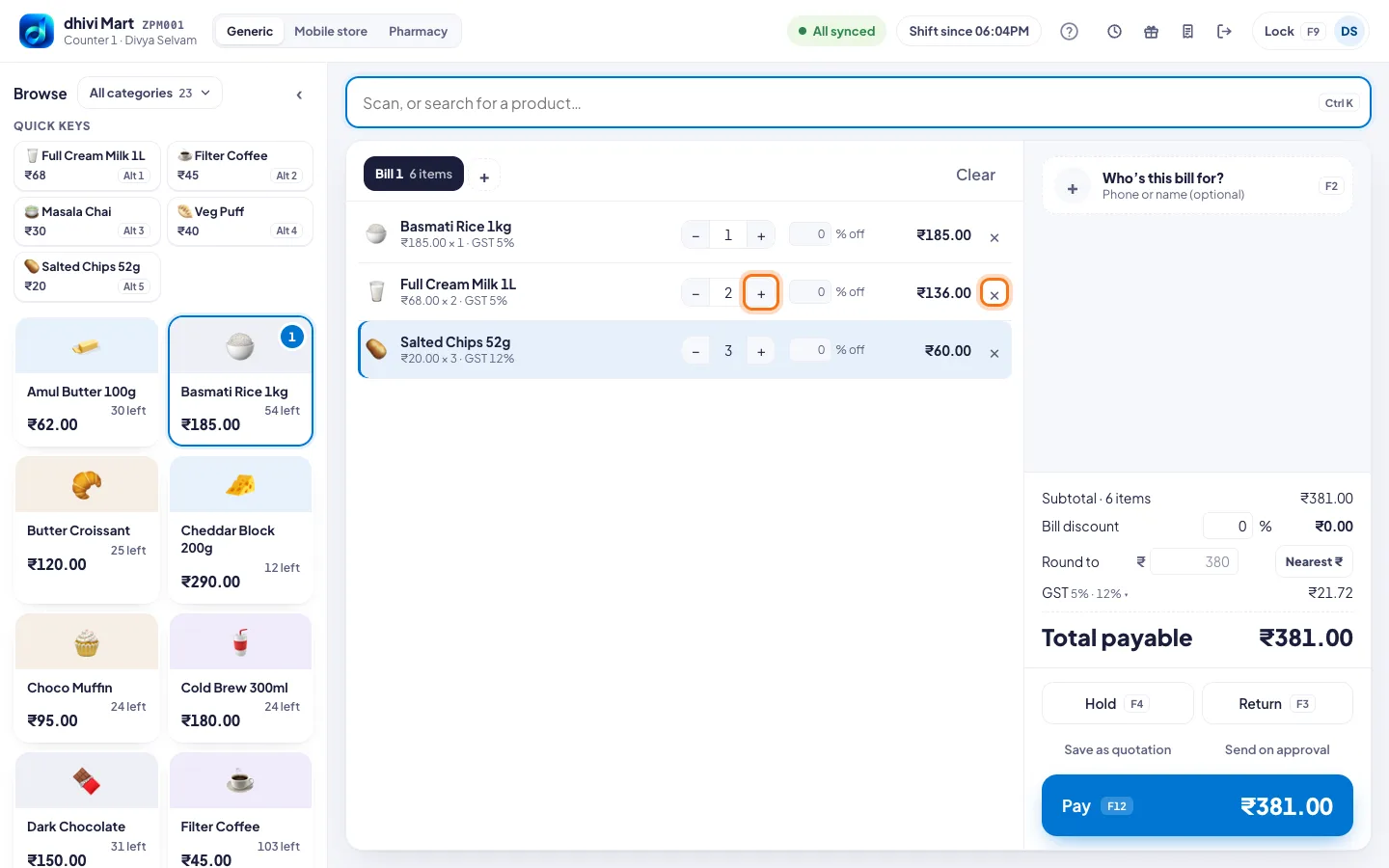
Check the total
- Total payable at the bottom right includes GST. Click GST to see it by rate.
- Offers come off by themselves. See Offers and discounts at the POS.
When the customer is ready, take payment.
Set up the quick keys
An owner or a manager sets up to eight quick keys. Every counter at the shop has the same keys.
- Above Quick keys on the left, click Set up (or Arrange once keys are set).
- Find a product and add it to a key.
- Click Save keys.
Good to know
- A hand scanner works any time. Start typing anywhere and the search box takes it.
- Click ‹ beside Browse, or press Ctrl B, to fold the product list away and give the bill more room.