Sign in to the POS
Sign in with your email or mobile number. No store code is needed: the first time on a device you use your password, and after that the POS remembers your shop, so you tap your name and type your PIN.
First time on a device: with your password
- Open the POS on the counter computer or phone.
- Type your Email or mobile number.
- Type your Password.
- Click Sign in.
- If you work at more than one shop, pick the shop.
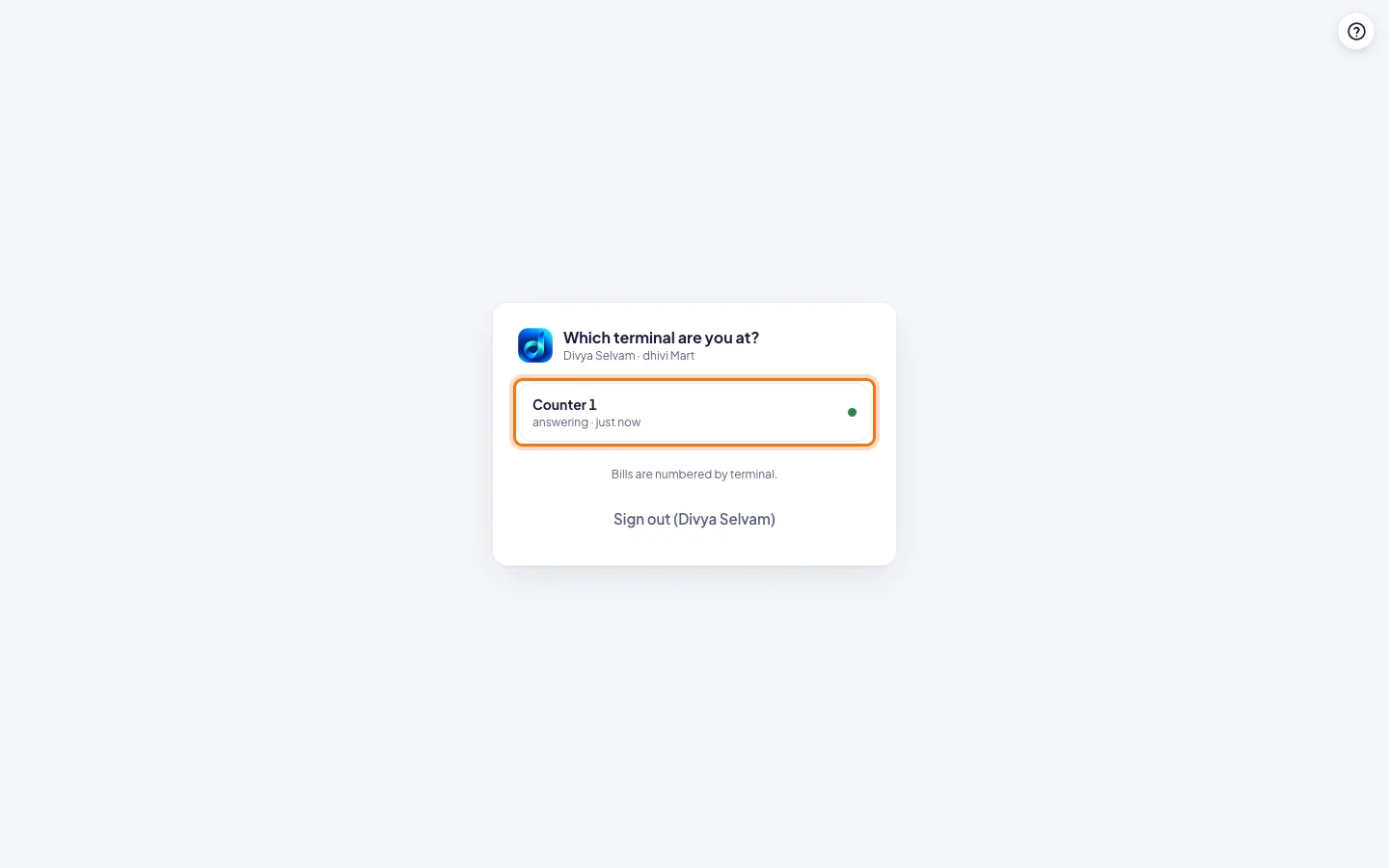
- Under Which terminal are you at?, click the counter you are billing at. The device remembers it.
- If you have no PIN yet, pick one of 4 to 6 digits when asked. Type it twice.
Every shift after: with your PIN
- Under Who's billing?, tap your name.
- Type your PIN on the keypad.
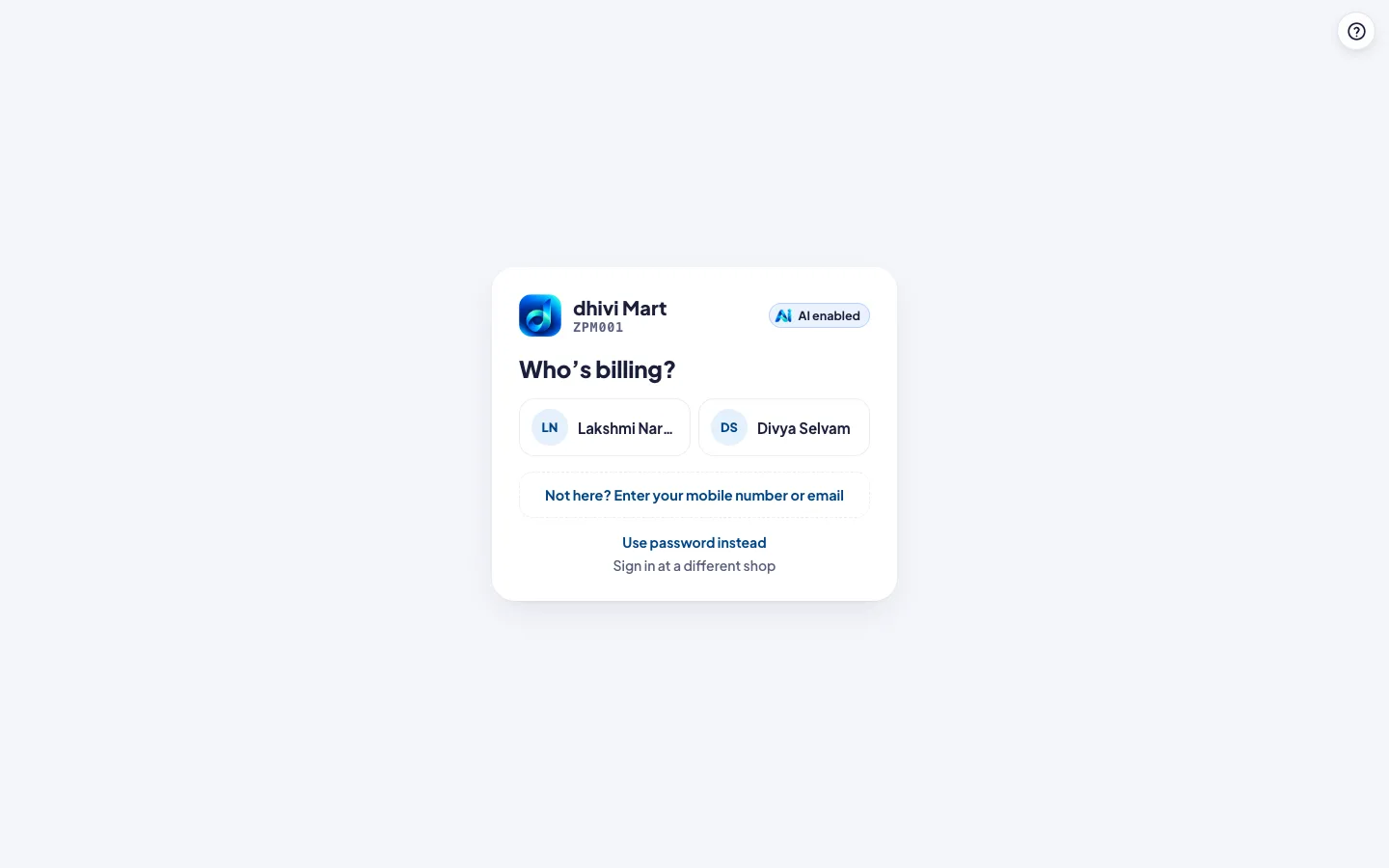
Not in the list? Click Not here? Enter your mobile number or email, type it, then your PIN.
Fingerprint or Face ID on your own phone
On your own phone you can sign in and unlock with the phone's fingerprint or Face ID instead of your PIN.
- Sign in on the phone once with your password or PIN. The POS asks Next time, Fingerprint? (on an iPhone, Face ID).
- Pick Fingerprint on this phone.
- Tap This is my phone. Turn on Fingerprint, and touch the sensor when the phone asks.
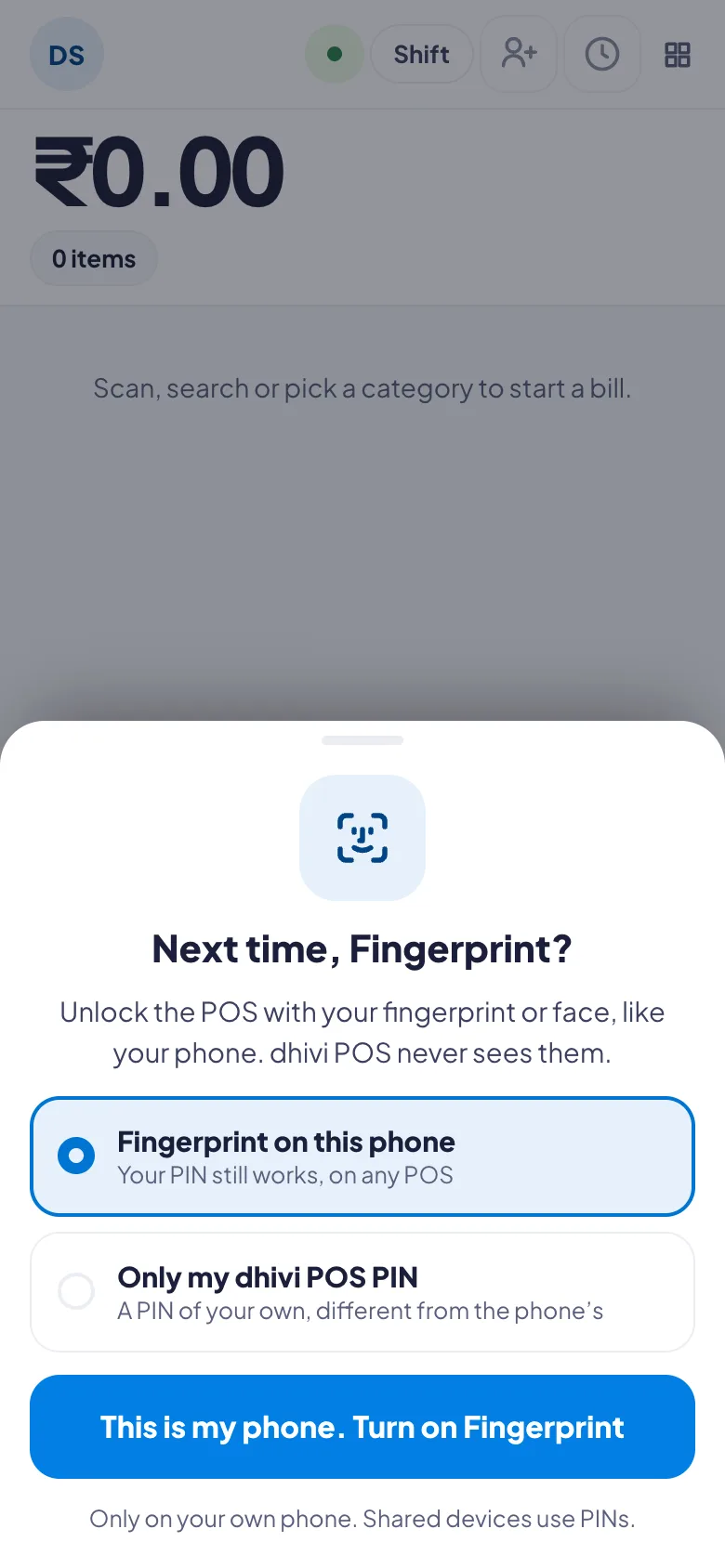
Next time, tap your name, then Fingerprint. Your PIN still works, on any POS.
To turn it on later, or off, tap your initials at the top left, then the Fingerprint switch. Use it only on a phone that is yours. Shared counters and tablets use PINs.
Good to know
- Your manager adds your mobile number under People in the back office. Without an email or a mobile number you cannot sign in.
- Forgotten your PIN? Click Use password instead.
- At a different shop today? Click Sign in at a different shop.
- Bills are numbered by terminal, so pick the counter you are really at.
- To change your PIN, click your initials at the top right, then Change my PIN.