Show a UPI QR on every bill
Customers scan the QR on the POS screen and pay the exact amount.
Steps
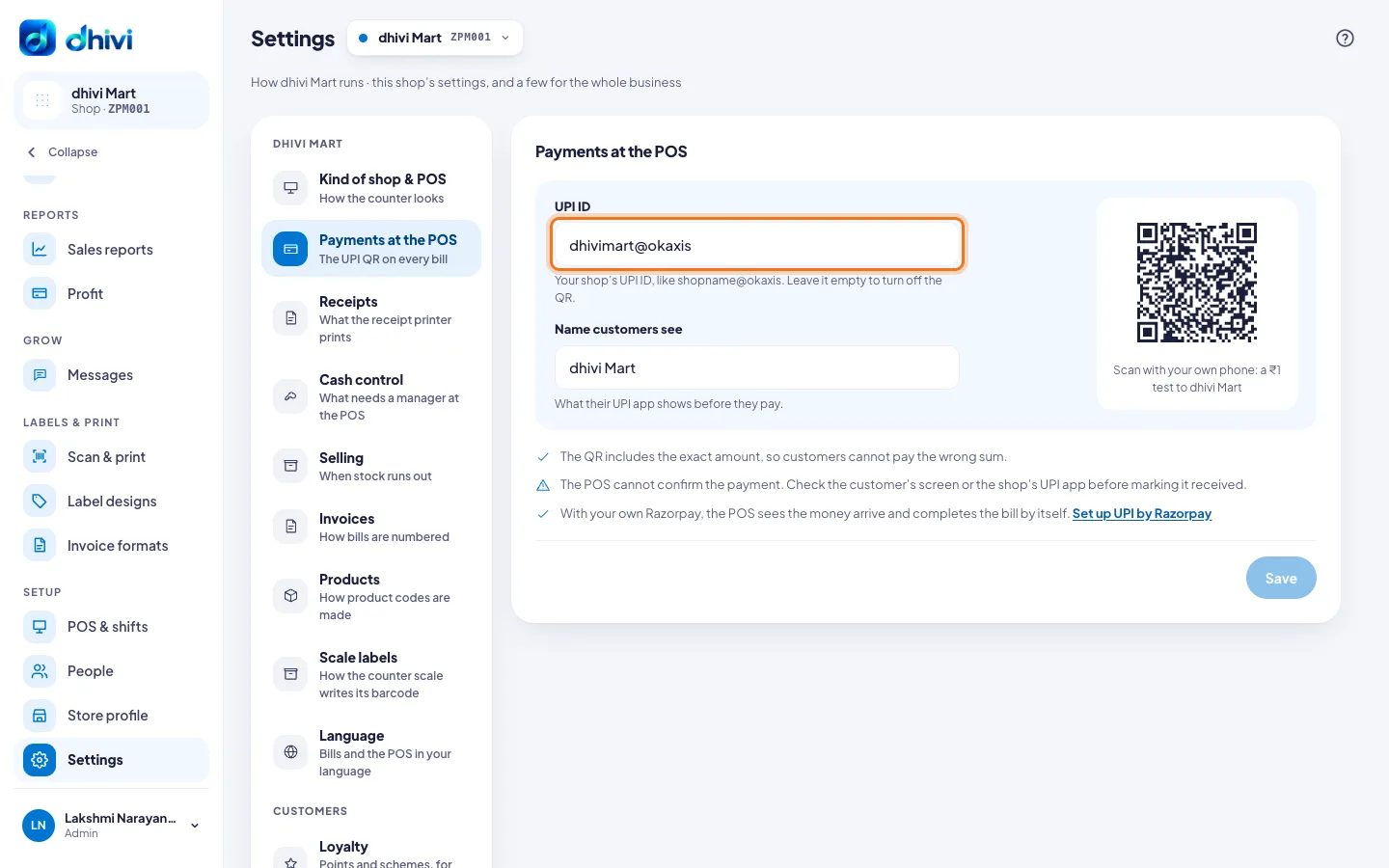
- In the menu, under Setup, click Settings, then Payments at the POS.
- Enter your shop's UPI ID, for example shopname@okaxis.
- Enter the Name customers see in their UPI app.
- Scan the test QR with your own phone and pay ₹1 to check it reaches your shop.
- Click Save.
Good to know
- The QR includes the exact amount, so customers cannot pay the wrong sum.
- The POS cannot see the money arrive. The cashier checks the customer's screen or the shop's UPI app before marking it received.
- With your own Razorpay account, the POS sees the money arrive and completes the bill by itself. See Confirm UPI payments with Razorpay.
- Leave the UPI ID empty for no QR.
- Each shop has its own UPI ID.