Disable or enable a shop
Disable a shop, store, branch or warehouse you no longer use, so the business fits a smaller plan. Its records stay. You can open and export them any time, and enable the shop again when your plan has room.
Only the owner, or an Admin who can see Billing, can disable or enable a shop.
Disable a shop
- Open your account page.
- In the menu on the left, click Your shops.
- On the shop's card, click Disable shop.
- Read what happens, then click Disable shop.
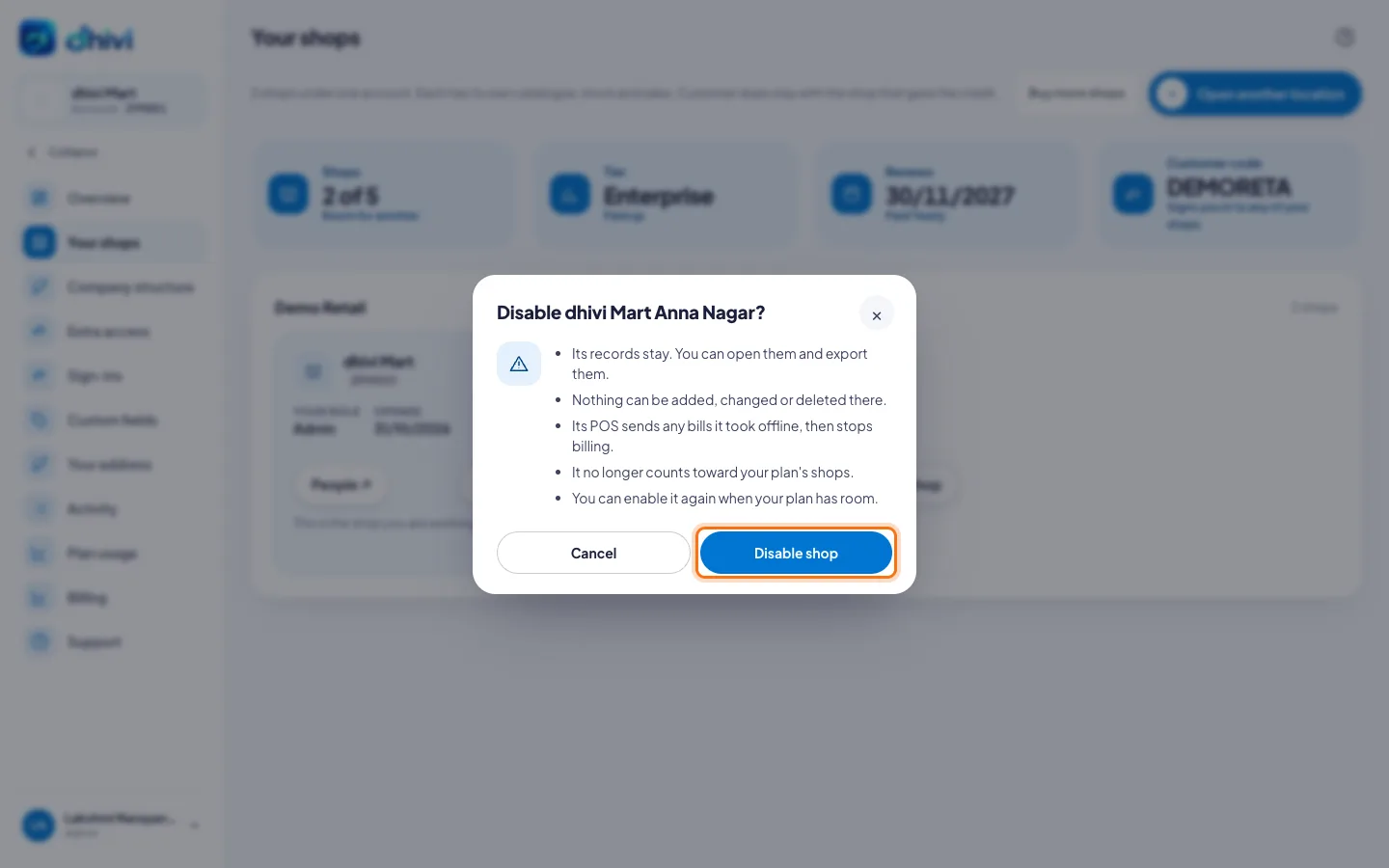
You can also disable shops while changing your plan. See Change your plan.
What a disabled shop can and can't do
| Disabled shop | |
|---|---|
| Open its pages in the back office | Yes |
| Export its records | Yes |
| Add, change, delete or import anything there | No |
| Bill at its POS | No |
| Count toward your plan's shops | No |
At the POS, any bills taken offline are sent first. Then the Pay button becomes Shop is disabled. Closing the shift and counting the drawer still work. See POS: Shop is disabled.
Look at a disabled shop's records
- On Your shops, click View records on the shop's card.
- Or in the back office, choose the shop from the shop picker at the top. It is marked Disabled.
A banner at the top says This shop is disabled. Use Export on any page to take a copy.
Enable a shop again
- On Your shops, click Enable shop on the disabled shop's card.
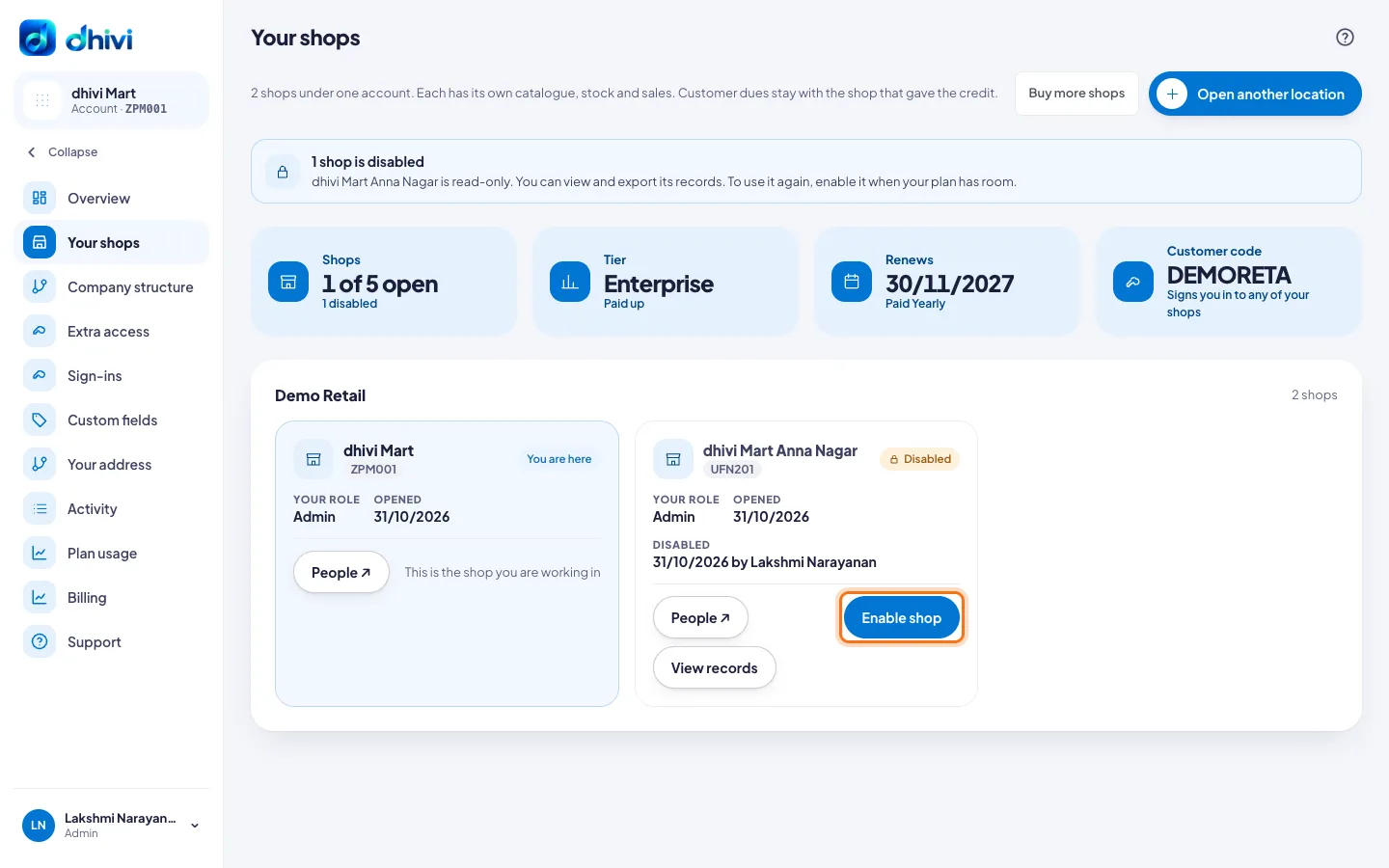
If your plan has no room, a popup says so. Move to a larger plan, buy another shop, or disable another shop first. See Buy more shops.
Good to know
- Your last open shop can't be disabled.
- Stock on its way to or from the shop must be received or cancelled before it is disabled.
- No stock can be sent to a disabled shop.
- In a product's Sell at, a disabled shop is greyed out. Editing the product from an open shop leaves the disabled shop as it was.
- Staff of a disabled shop can still sign in there, to look and export.
- Disabling and enabling are shown on Activity.