Create your dhivi POS account
Your account holds your business. You need it once, before you open your first shop. No card is needed.
Steps
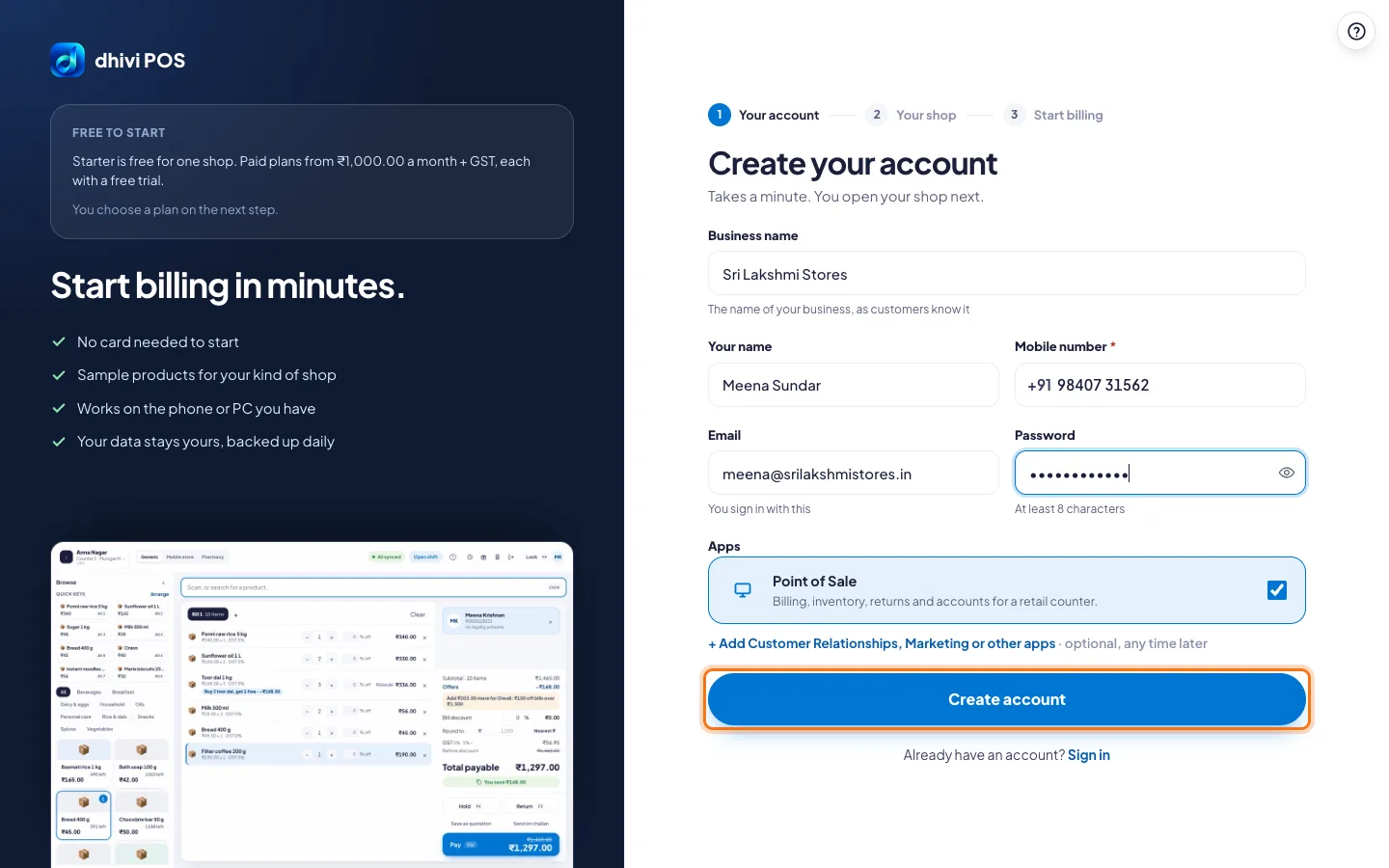
- Open the dhivi POS sign-in page and click Create your account.
- Type your Business name, the name customers know you by.
- Type Your name and your Mobile number.
- Type your Email. You sign in with it.
- Choose a Password of at least 8 characters.
- Under Apps, keep Point of Sale ticked.
- Click Create account.
Confirm your email
We send a 6-digit code to your email.
- Open the email from dhivi POS and copy the code.
- Type it under Code. It works for 10 minutes.
- Click Create account.
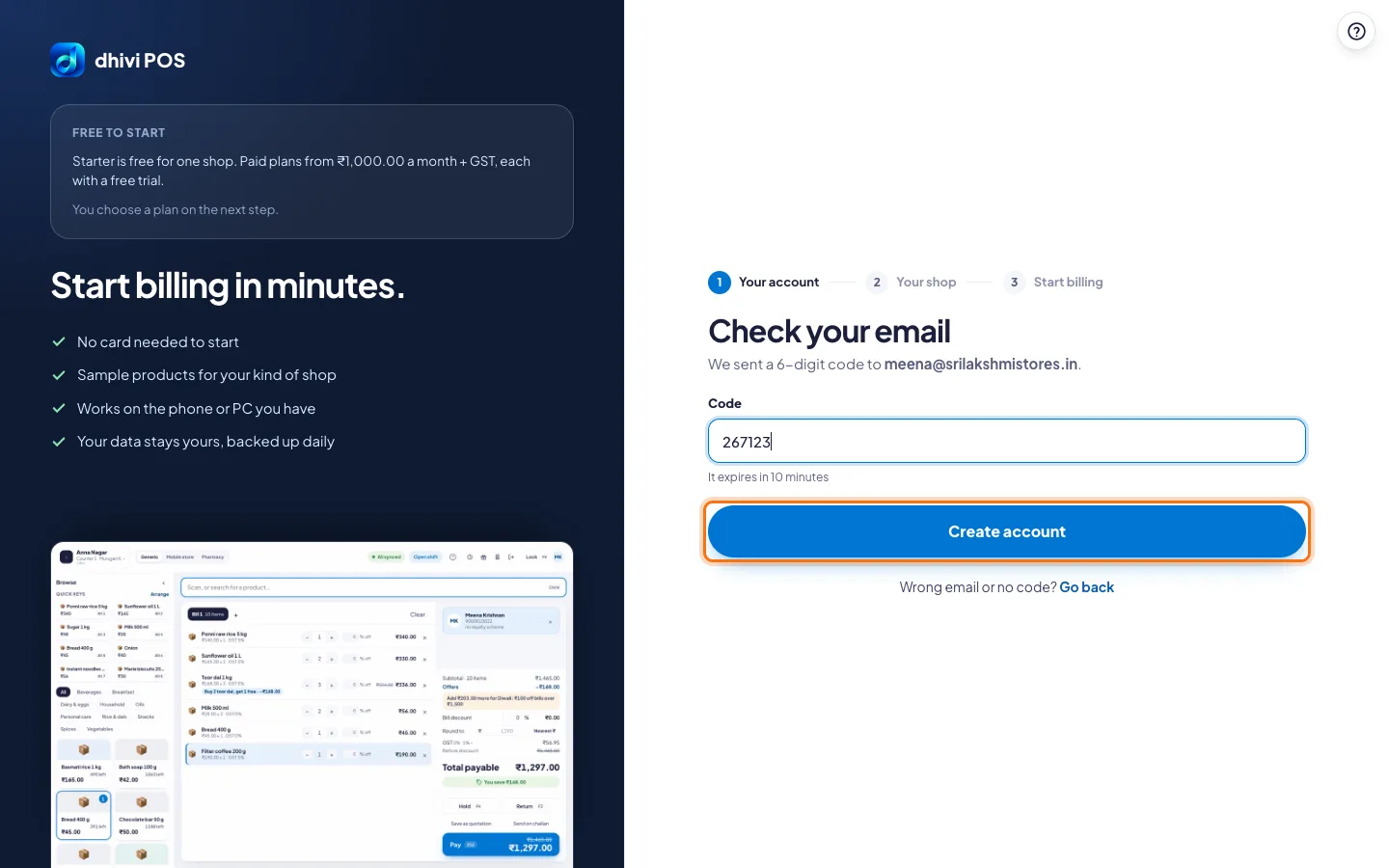
No email? Check your spam folder. Typed the wrong address? Click Go back and fix it.
What happens next
- You are signed in straight away.
- dhivi POS asks you to open your first shop. See Open your first shop.
Good to know
- Customer Relationships, Marketing and other apps are optional. Add them any time later.
- At a POS that is not set up yet? Create your account is on the POS sign-in screen too.