Sell by weight and in packs
Sell loose goods by the kg, litre or metre. Sell a bag, tray or sack at its own price, with stock kept in the smaller unit.
Set up a loose product
- Open the product and click Edit, or add a new one.
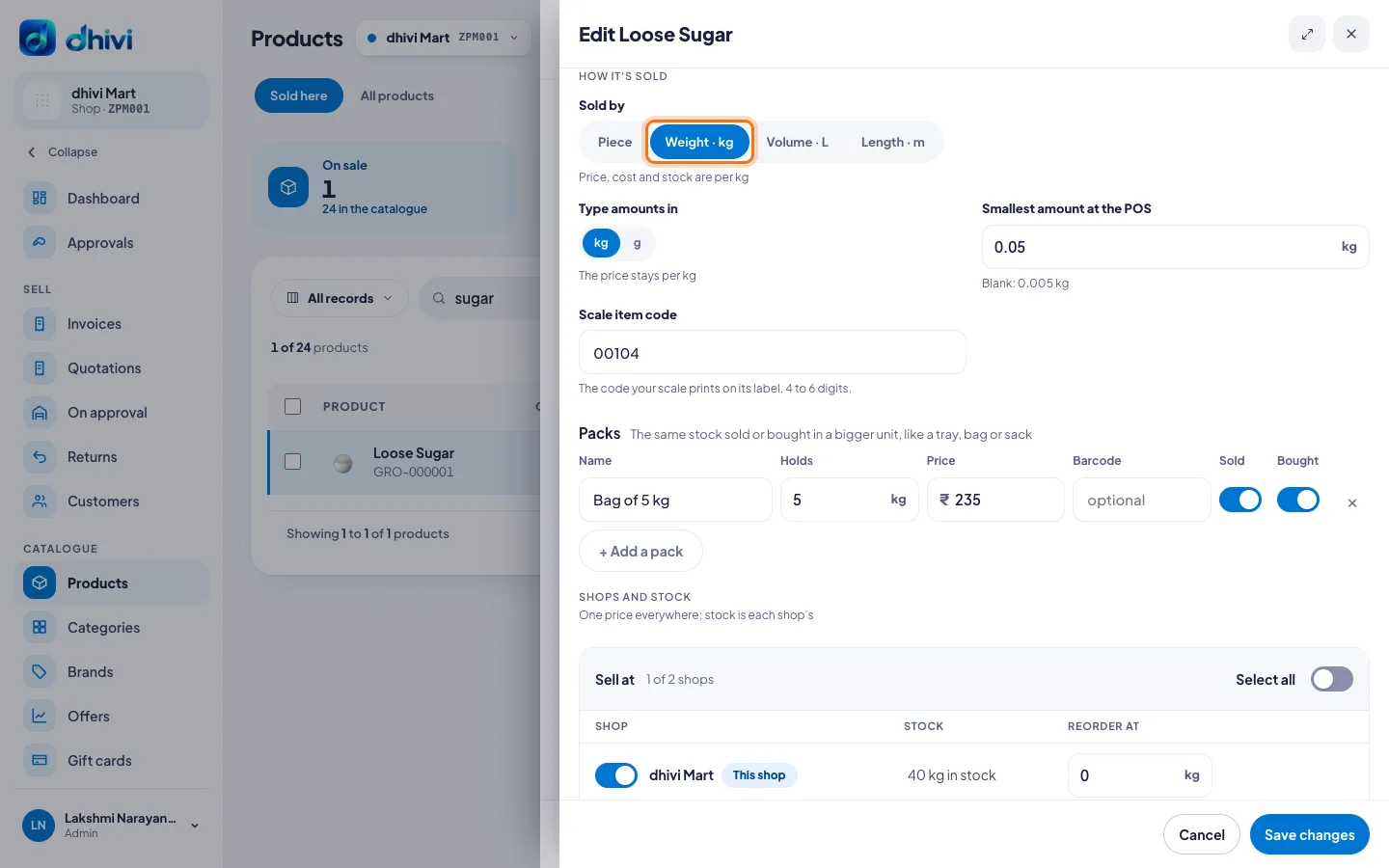
- Under How it's sold, set Sold by to Weight · kg, Volume · L or Length · m.
- The price, cost and stock are now per kg (or per L, per m). To type amounts in grams or ml instead, set Type amounts in to g or ml. The price stays per kg or L.
- Under Smallest amount at the POS, enter the least the POS may sell, like 0.05 kg. Leave it blank for 5 g.
- If a counter scale prints labels for it, enter its Scale item code, 4 to 6 digits.
- Click Save changes (or Add product for a new one).
Add a pack
- In the same product, under How it's sold, click + Add a pack.
- Enter the pack's Name, like Bag of 5 kg or Tray of 30.
- Under Holds, enter how much one pack holds.
- Enter its Price, and its Barcode if it has one.
- Leave Sold on to sell the pack at the POS. Leave Bought on to receive it from suppliers.
- Save the product.
At the POS
See Sell loose items by weight.
Good to know
- A pack takes its stock from the product. Selling one Bag of 5 kg takes 5 kg off.
- A product can have up to 10 packs.
- Packs are not offered on a product sold with an IMEI or serial number.
- Turn Sold off for a pack you only buy in, like a 50 kg sack you sell loose.