Change a product's price or details
Change a product's price, GST, barcode or name in the back office.
Steps
- Click Products in the menu.
- Find the product. Type its name or barcode in the search box.
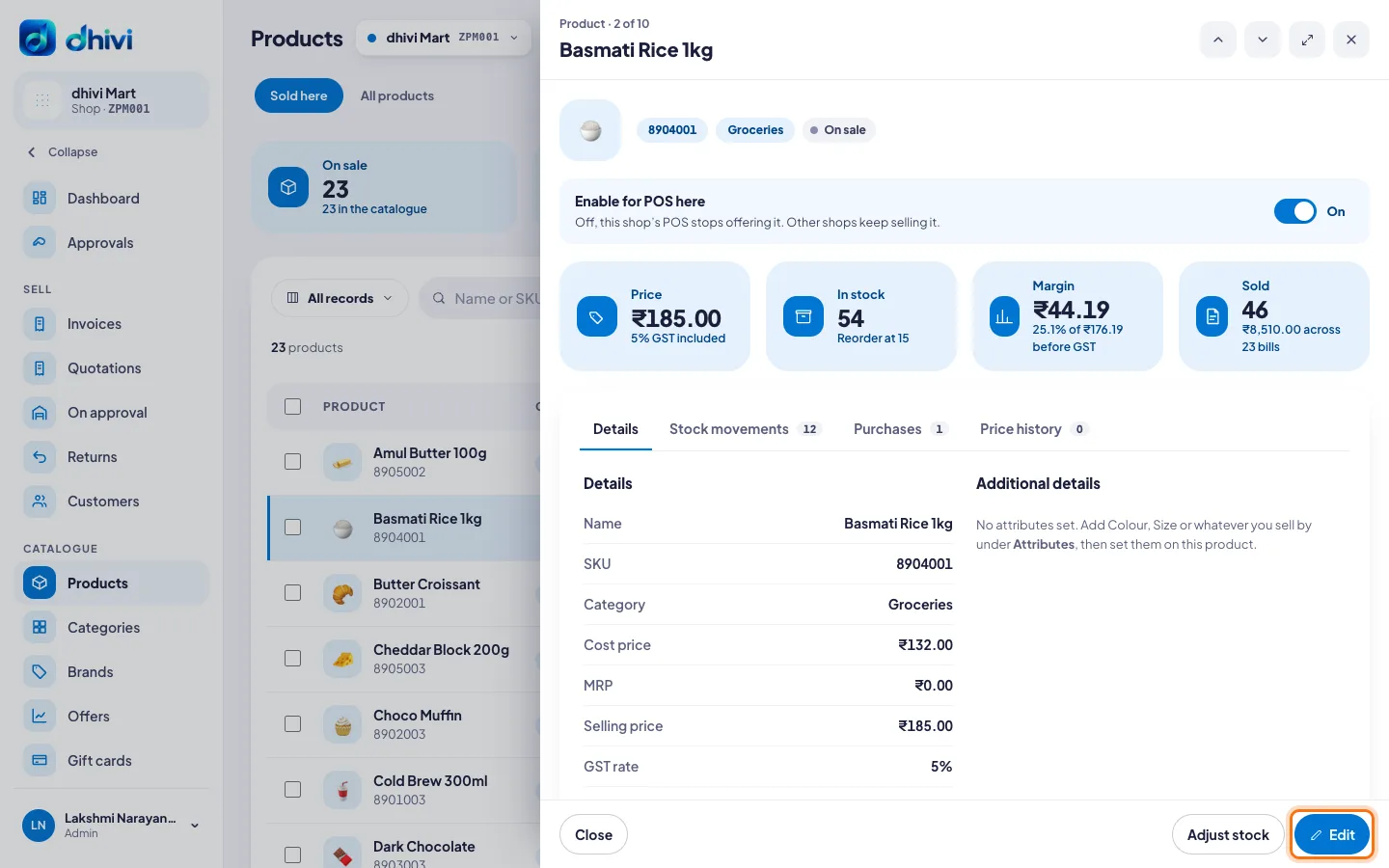
- Click the product. Its details open on the right.
- Click Edit.
- Change the price, GST or anything else.
- Click Save changes.
Good to know
- The panel also shows Stock movements, Purchases and Price history.
- Enable for POS here stops this shop's POS offering it. Your other shops keep selling it.
- To correct the stock, click Adjust stock. See Check and correct stock.
- A new price shows on the POS the next time it refreshes.
- Old bills keep the price they were sold at.