Change many products at once
Raise prices, change the GST rate or the category, or stop selling a group of products, all in one step.
Steps
- Click Products in the menu.
- Find the products. Search, or filter by Category.
- Tick each product you want to change. Tick the box in the header to tick every product shown.
- In the bar at the bottom, click Change… and pick what to change:
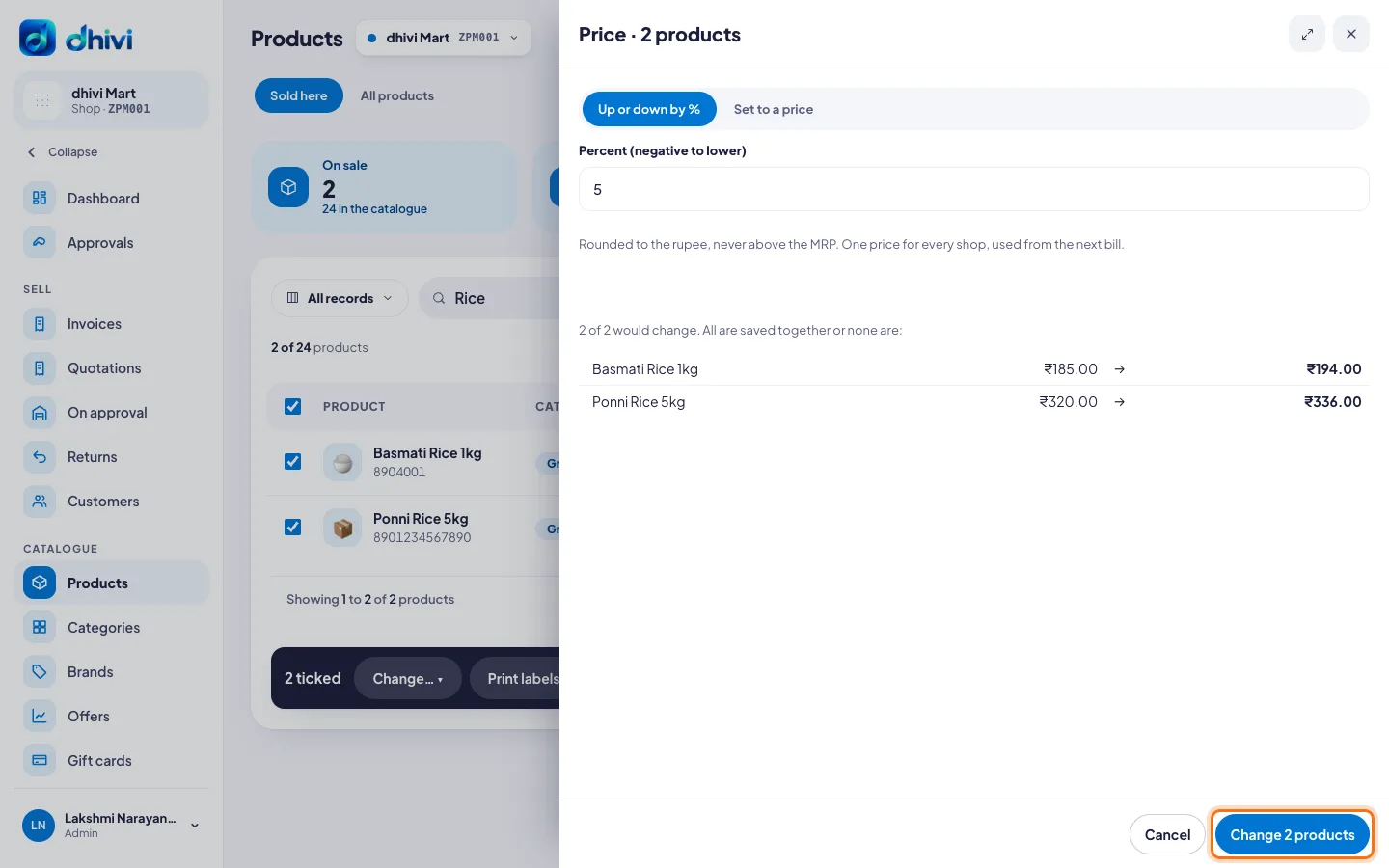
- Price – up or down by a %, or set to one price.
- MRP, GST rate, HSN code or Category.
- Reorder level here – for this shop.
- Sold here or Shops that sell them – start or stop selling them at a shop.
- Price on a price list – their price for one list.
- Retire or bring back – stop selling them at every shop, or sell them again.
- Fill in the new value. The list shows each product's old and new value.
- Click Change and the number of products.
Good to know
- All the products change together, or none do. If one cannot change, nothing is saved.
- Prices are rounded to the rupee and never go above the MRP. The new price is used from the next bill, at every shop.
- Retired products are removed from the POS at every shop. Their records are kept.
- Print labels in the same bar prints shelf labels for the ticked products.