Choose what the receipt prints
Set how receipts print at this shop: after every sale or not, the paper width, a barcode, a UPI QR for an unpaid bill, and a line at the bottom.
Steps
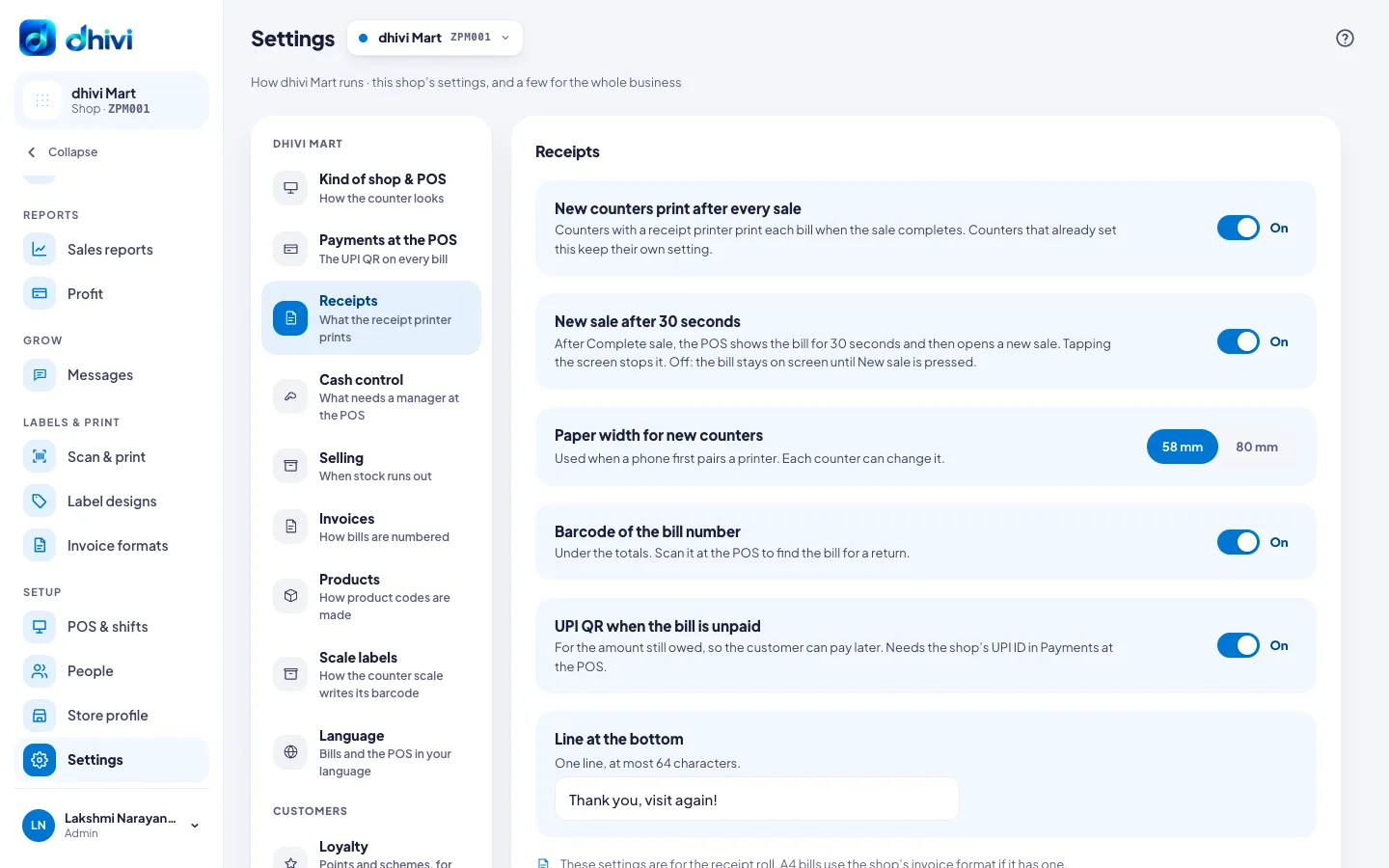
- In the menu, under Setup, click Settings, then Receipts.
- Turn each on or off:
- New counters print after every sale – counters with a receipt printer print each bill when the sale completes. Counters that already chose keep their own setting.
- New sale after 30 seconds – the POS shows the bill for 30 seconds, then opens a new sale. Tapping the screen stops it. Off, the bill stays until New sale is pressed.
- Barcode of the bill number – printed under the totals. Scan it at the POS to find the bill for a return.
- UPI QR when the bill is unpaid – for the amount still owed, so the customer can pay later. It needs the shop's UPI ID in Payments at the POS.
- Under Paper width for new counters, pick 58 mm or 80 mm. It is used when a phone first pairs a printer. Each counter can change it.
- Under Line at the bottom, enter one line of up to 64 characters, for example Thank you, visit again!
- Click Save.
Good to know
- These settings are for the receipt roll. A4 bills use the shop's invoice format if it has one.
- The printer is set up on each phone, from the POS menu. See Connect a receipt printer on Android.
- POS & shifts shows which counters have a printer.