Change how your bill looks
Choose what prints on your bills and return notes. Until you make a format, every POS prints the built-in one.
Steps
- In the menu, under Labels & print, click Invoice formats.
- Click New invoice format. Or open the Samples to start from tab, pick a paper size, and click Use a copy.
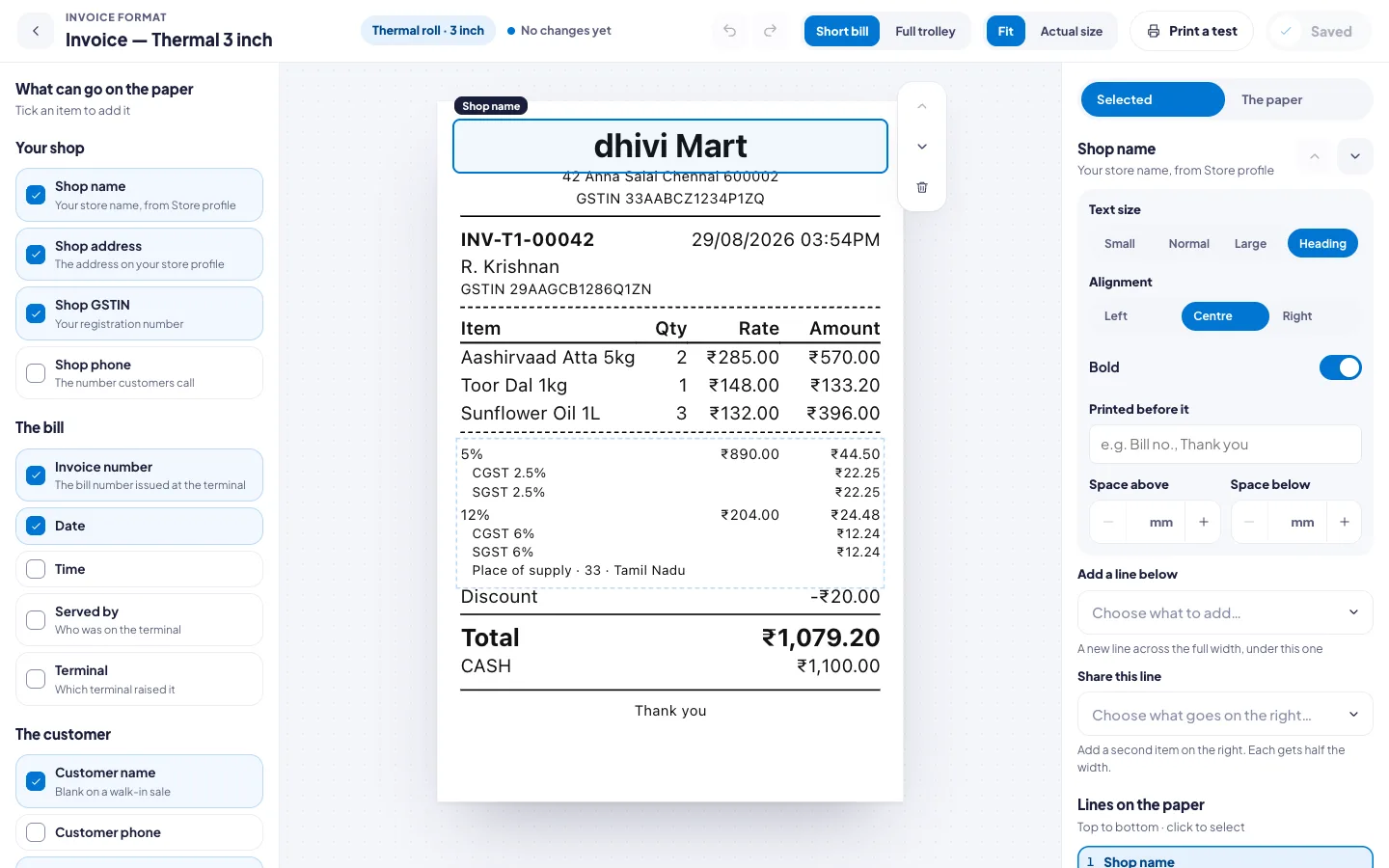
- Your format opens. Tick an item on the left to add it to the paper, for example Shop phone or QR code. Untick it to take it off.
- Click a line on the paper to change its text size, alignment and spacing on the right.
- Use Short bill and Full trolley to check a small and a long bill. Click Print a test to try it on your printer.
- Changes are saved as you go. Click the back arrow when you are done.
Choose what each POS prints
- Open the What each POS prints tab.
- Beside each POS, pick its invoice format and its return note format.
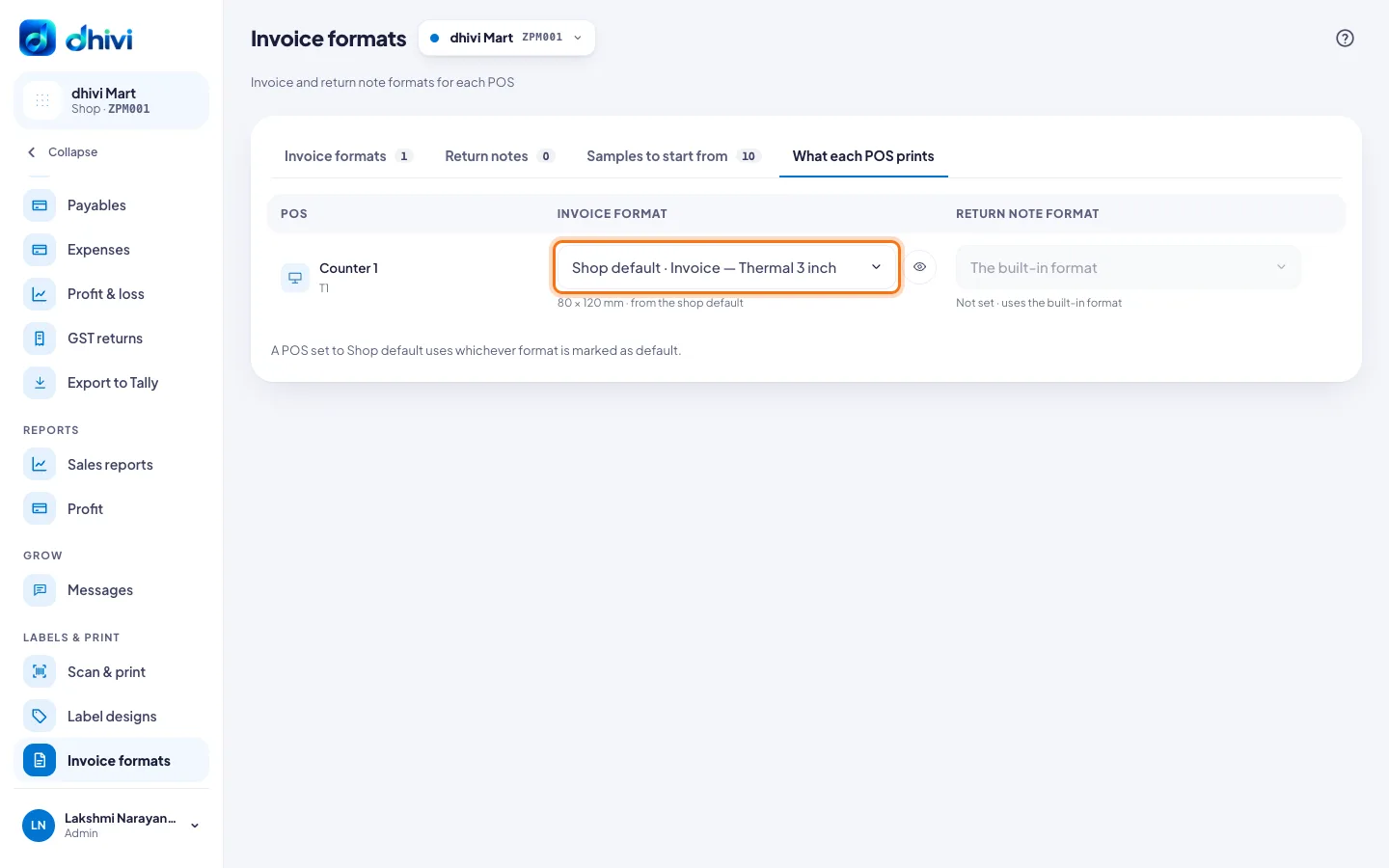
A POS set to Shop default prints whichever format is marked as the default.
Good to know
- Your shop name, address and GSTIN come from your store profile.
- Return notes have their own formats, on the Return notes tab.
- The samples include thermal rolls of 2, 3 and 4 inches, and A5 and A4 sheets.