Print shelf labels
Print price stickers with a barcode for your shelves.
First, make a label design
- In the menu, under Labels & print, click Label designs.
- Click Start from a sample, or the Samples to start from tab.
- Pick a size and click Use a copy. Your copy opens.
- Add, move or take off what prints: product name, price, MRP, barcode, shop name and more. Changes are saved as you go.
Then print
- Click Scan & print in the menu.
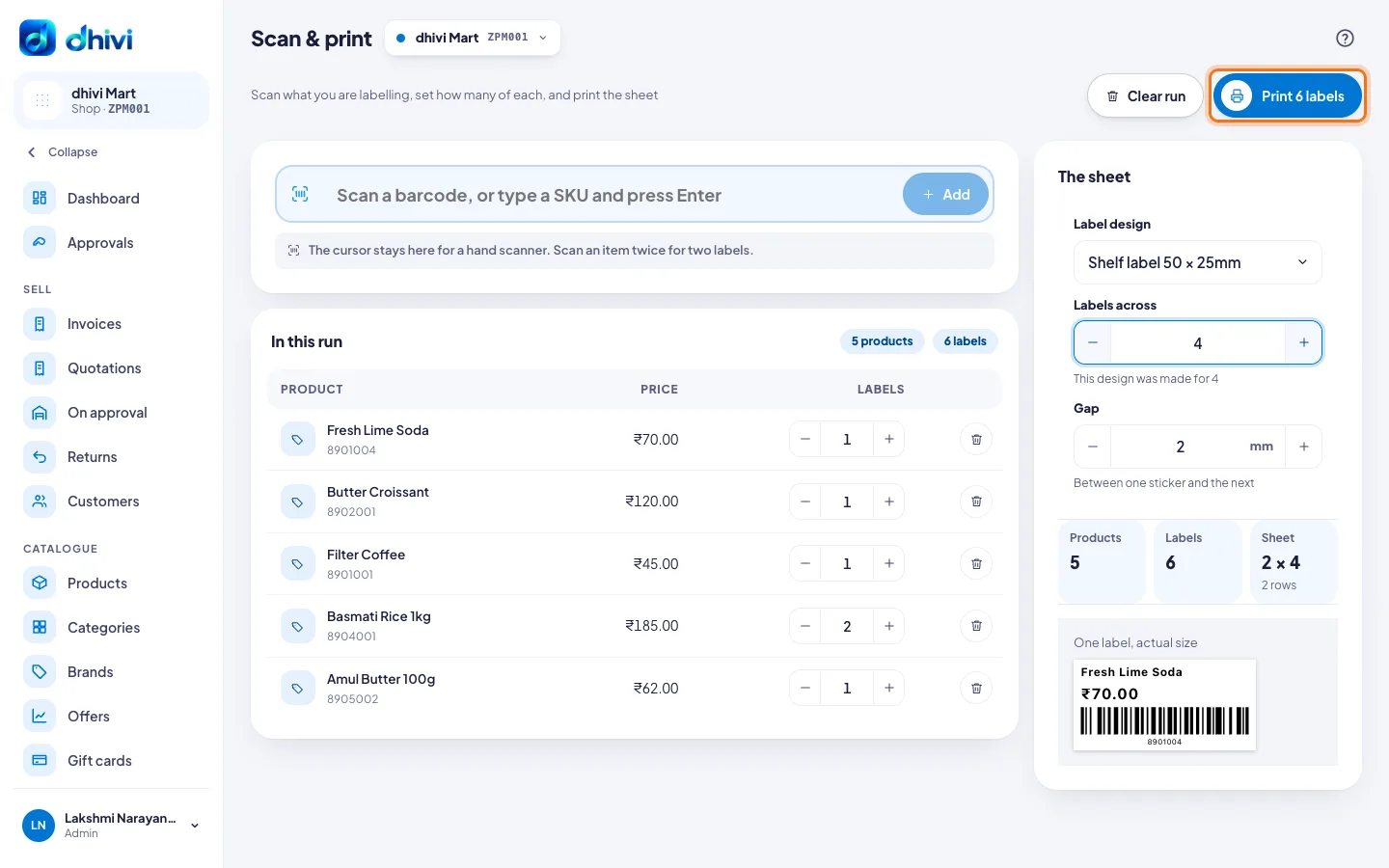
- Scan each product you want labels for, or type its SKU and press Enter. Scan it twice for two labels.
- Use − and + beside any item to change how many labels it gets.
- Under The sheet, pick your Label design. Set Labels across and the Gap to match your sticker sheet.
- Click Print. The button shows how many labels will print.
Good to know
- Clear run empties the list for the next batch.
- One label, actual size shows how a label will look before you print.