Take in a repair and hand it back
Take a customer's phone in for repair, track it until it is ready, and bill the repair when they collect it. Repairs is at the POS in the Mobile store layout.
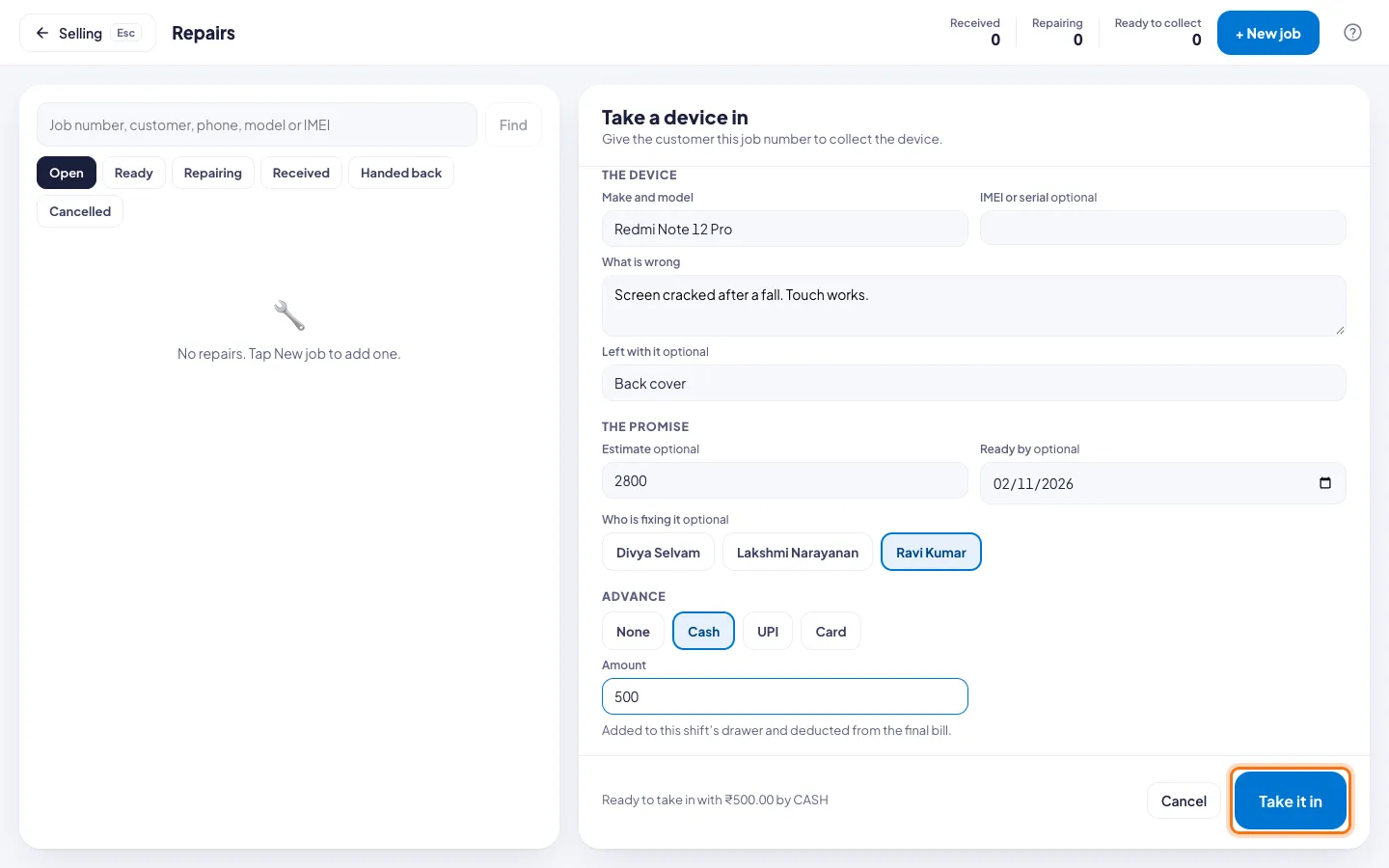
Take a device in
- Click the spanner button at the top for Repairs.
- Click + New job.
- Type the customer's Name and the Phone to call when it is ready.
- Type the Make and model, and the IMEI if you have it.
- Under What is wrong, write the fault in the customer's words.
- Under Left with it, note anything they left, like a back cover or a charger.
- If you like, type an Estimate, a Ready by date and Who is fixing it.
- Took an advance? Pick Cash, UPI or Card and type the Amount.
- Click Take it in. Give the customer the job number, for example RJ-00001.
While you repair it
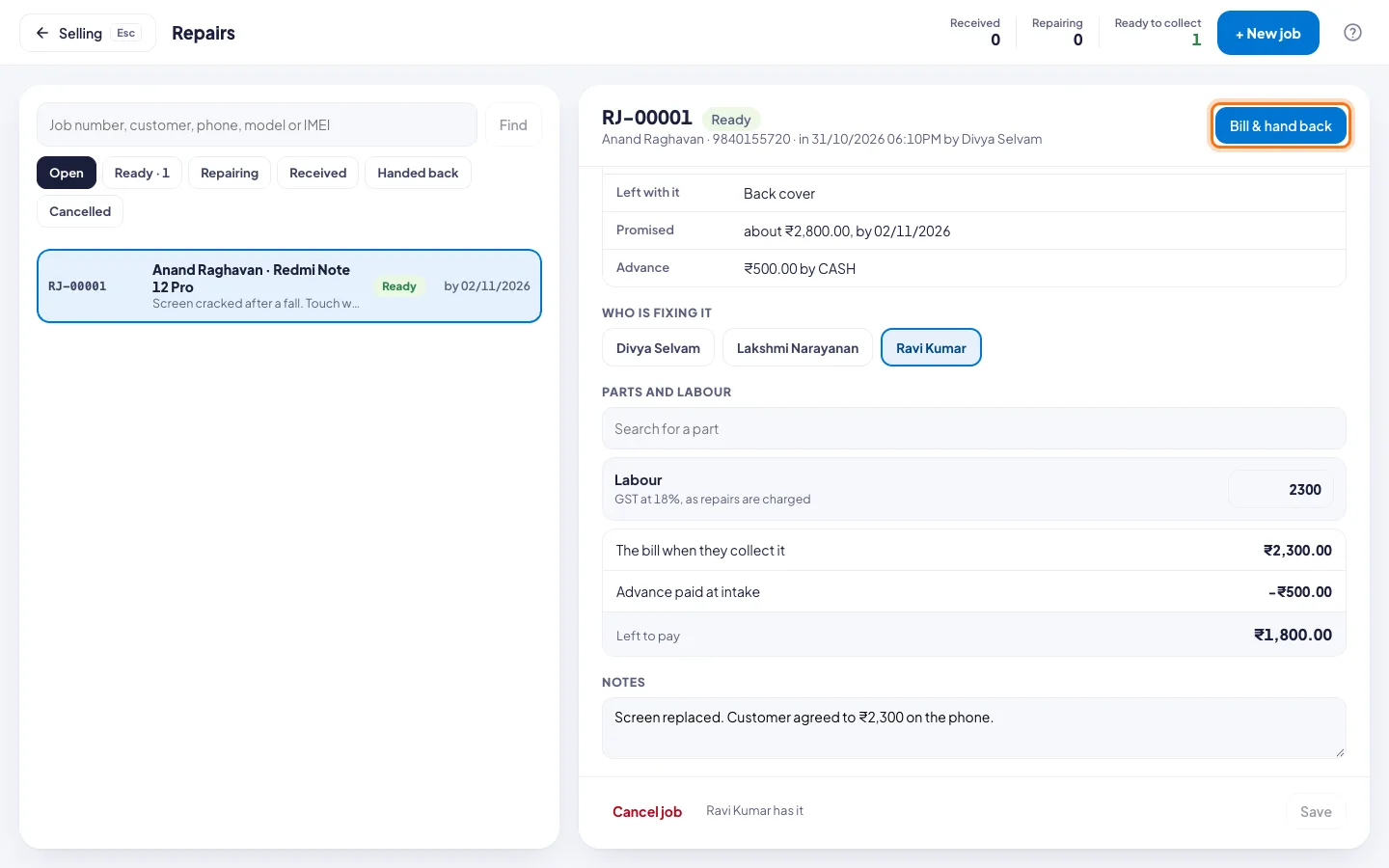
- In Repairs, click the job.
- Under Where it is, move it to Repairing, then Ready.
- Under Parts and labour, search for any part you used and type the Labour.
- Write what was done under Notes, and click Save.
Ready to collect at the top counts the jobs waiting. The POS shows the same count at the top, for example 1 repair ready.
Hand it back
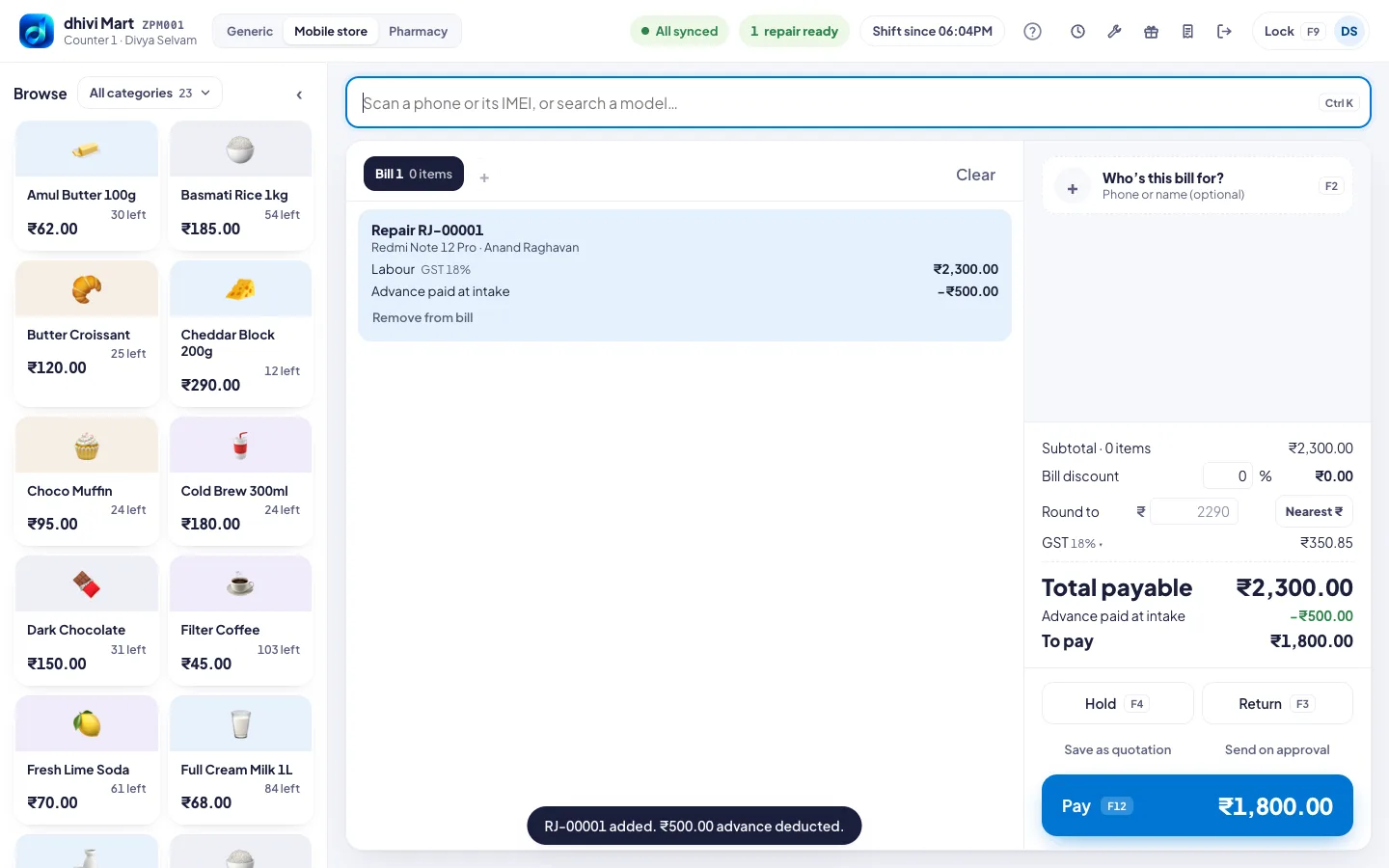
- Click the job, then Bill & hand back.
- The repair goes on a bill, with the advance taken off. To pay is what is left.
- Take payment as usual.
Good to know
- Labour is charged with 18% GST.
- An advance in cash goes into this shift's drawer.
- Cancel job gives the advance back in cash from this drawer, even if it was paid by UPI or card. The POS asks first.
- To see the Mobile store layout, click Mobile store at the top of the POS. The owner can set it for every counter. See Choose your kind of shop.