Receive a delivery from a supplier
Record what a supplier sent. The goods go straight onto your stock.
Steps
- Click Deliveries under Purchases in the menu.
- Click Receive a delivery.
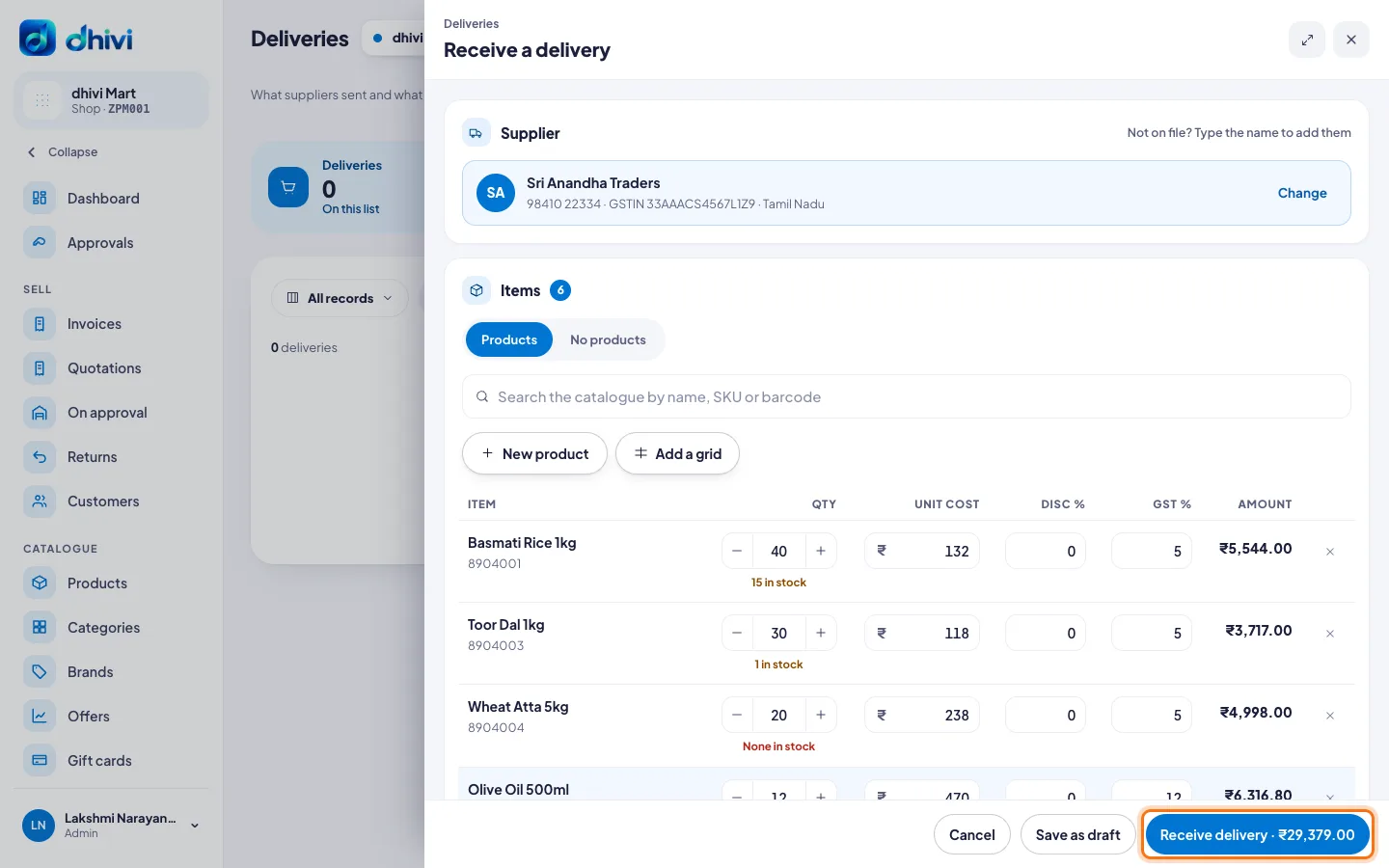
- Under Supplier, search by name or phone and pick them. Not on file? Type the name and click Add … as a new supplier.
- Ordered on a purchase order? Select it under Against order, which shows when the supplier has an open order. Its lines are filled in.
- Under Items, search the catalogue by name, SKU or barcode and click each product. Type the Qty and the Unit cost. Change the GST % if their bill says something else.
- Under Details, type the Invoice number and Invoice date from their bill.
- Under How it is paid, pick Cash, Bank transfer or Credit (pay later). For credit, pick when it is due: 7 days, 15 days, 30 days or 45 days.
- Keep Put these on the shelf now switched on.
- Check the total on the right, then click Receive delivery. The button shows the amount.
Good to know
- On credit, the bill appears under Payables until you pay it.
- The cost you type here updates the product's average cost and your profit figures.
- Not finished? Click Save as draft and come back later.
- A product not in your catalogue yet? Click New product in the form. For sizes and colours, click Add a grid.
- A supplier's bill with no goods, such as a service? Pick No products at the top of Items.