Give some customers their own prices
A price list gives a group of customers lower prices, like Wholesale, Dealer or Hotels. Retail is each product's own selling price, and every customer pays it unless they are on a list. A list has the same prices at every shop.
Make a price list
- Click Price lists under Catalogue in the menu.
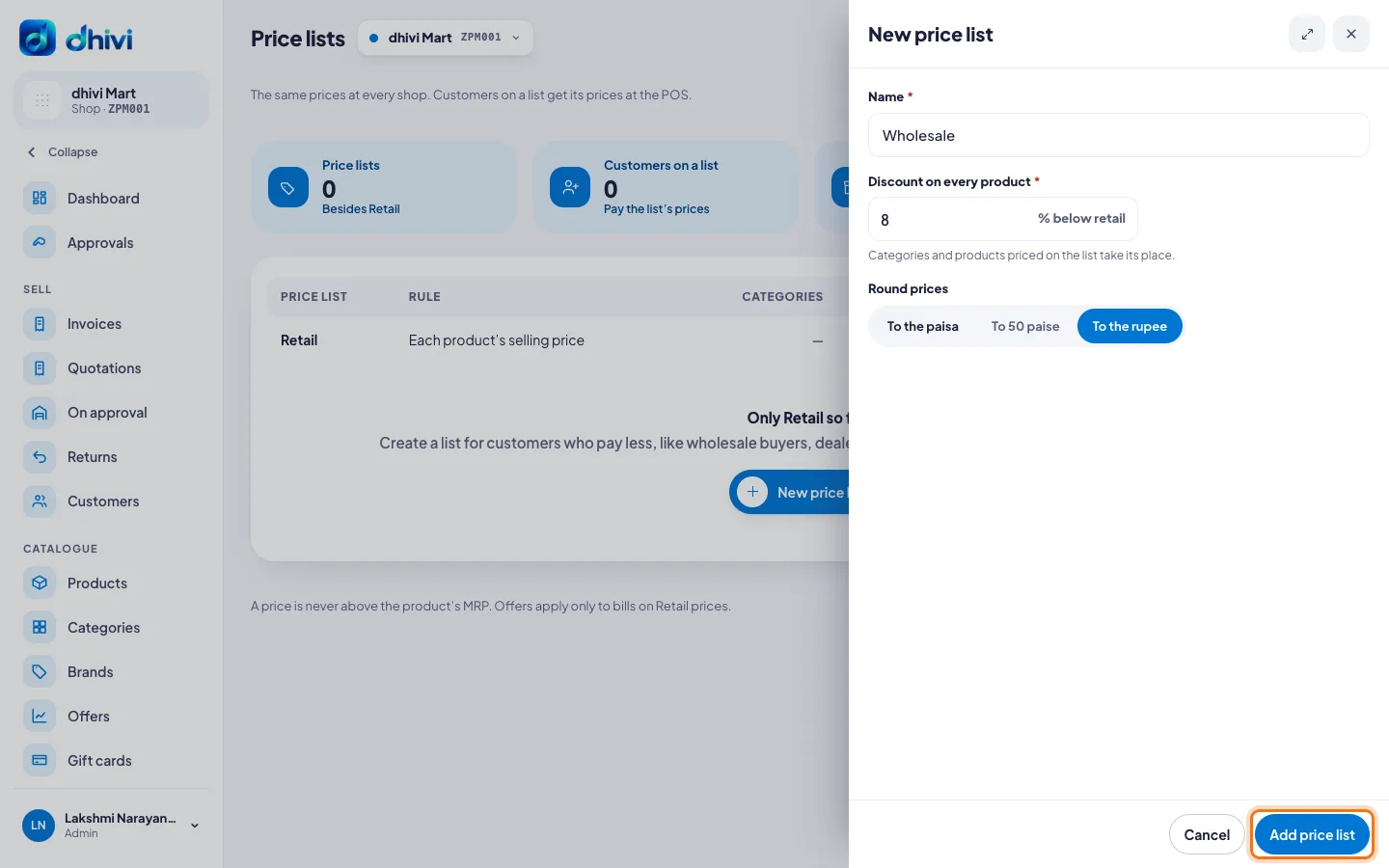
- Click New price list.
- Enter a Name, for example Wholesale.
- Under Discount on every product, enter how many % below retail.
- Under Round prices, choose To the paisa, To 50 paise or To the rupee.
- Click Add price list.
Give a category its own discount
- Click the price list, then the Categories tab.
- Click Add category.
- Select the Category and enter its Discount.
- Click Add category.
Its sub-categories get the same discount, unless they have their own.
Set a product's price by hand
- Click the price list. The Products tab lists every product.
- Click Edit next to the product.
- Enter the Price on this list. Leave it empty to use the discount.
- To give a lower price for a larger quantity, add Quantity breaks: a From quantity and a Price. Up to five.
- Click Save.
Many prices to set? Click More, then Download prices. Fill in the spreadsheet, then click More, Upload prices.
Put a customer on a list
- Open Customers and click the customer.
- Click Edit.
- Under Price list, choose the list, and save.
At the POS, that customer's bills get the list's prices.
Good to know
- A product's manual price comes first, then its category's discount, then the list's discount.
- Turn a list off with its Active switch. Its customers pay Retail until you turn it on again. Nothing is deleted.
- Offers apply only to a bill on Retail prices.
- At the POS, a manager can choose another list for a bill. A cashier needs a manager's approval.