See or change a customer's points
Every customer's points are on their record, with each change listed: earned on a bill, spent at Pay, given back on a return, or changed by hand.
See their points
- Click Customers in the menu and click the customer.
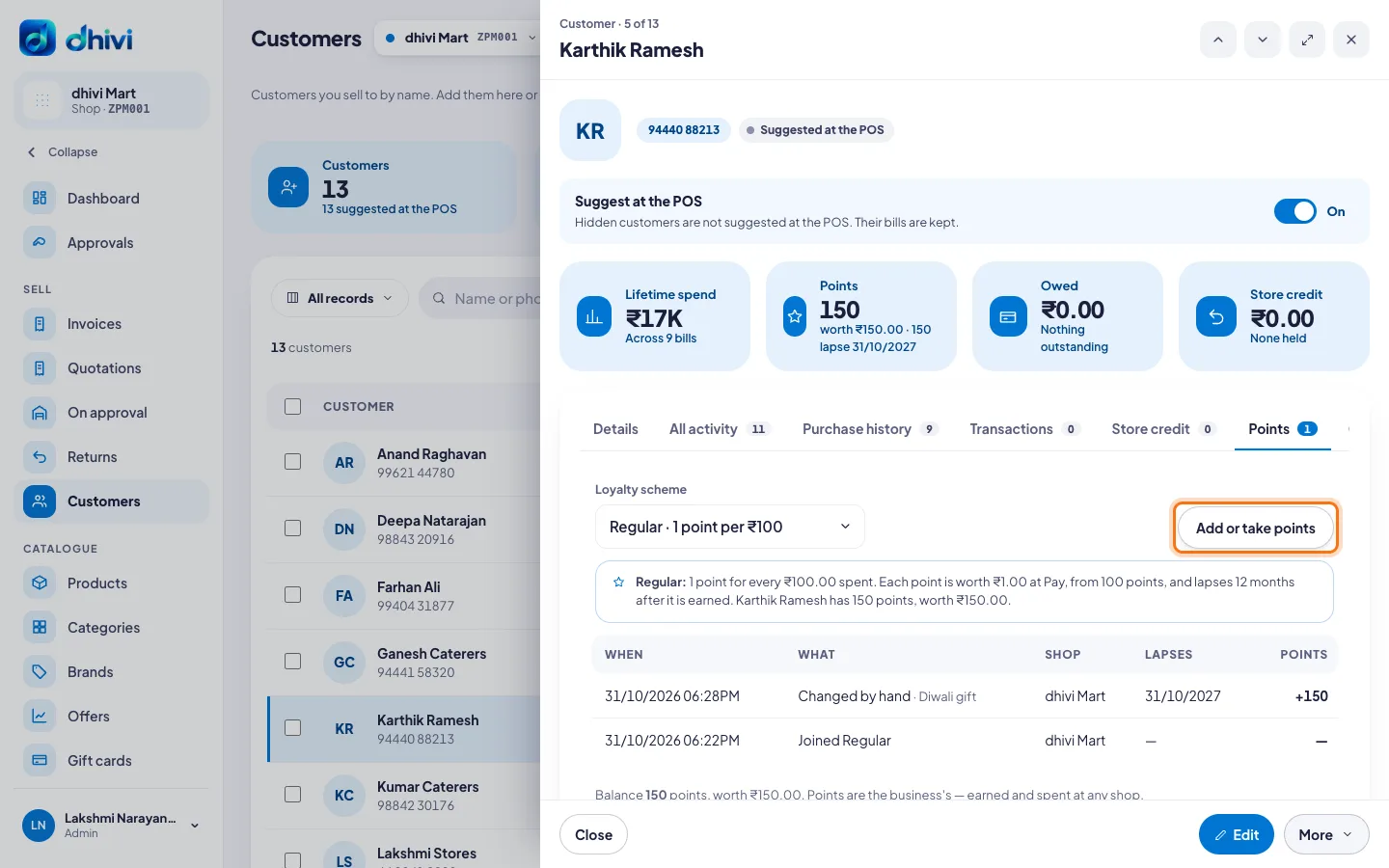
- The Points card shows their balance, what it is worth, and when the next points lapse.
- Open the Points tab to see every change, which shop it was at, and when each lapses.
Put them on another scheme
- Open the customer's Points tab.
- Under Loyalty scheme, choose the scheme. Choose No scheme · earns no points to stop them earning.
The points they have stay theirs to use until they lapse.
Add or take points by hand
- Open the customer's Points tab.
- Click Add or take points.
- Choose Add points or Take points.
- Enter the Points, and Why, like Diwali gift or Given by mistake.
- Click Add (or Take) and the number of points.
Good to know
- Points are the business's. A customer earns at one shop and spends at any.
- Points added by hand lapse like earned points, after the scheme's months.
- Only an admin can add or take points. A manager can change a customer's scheme.
- To set up schemes, see Give loyalty points.