Make a quotation
A quotation is the prices you offer a customer. No stock moves and no GST is due until you make a bill from it. While it is valid, the bill keeps the quoted prices.
Make a quotation
- Click Quotations under Sell in the menu.
- Click New quotation.
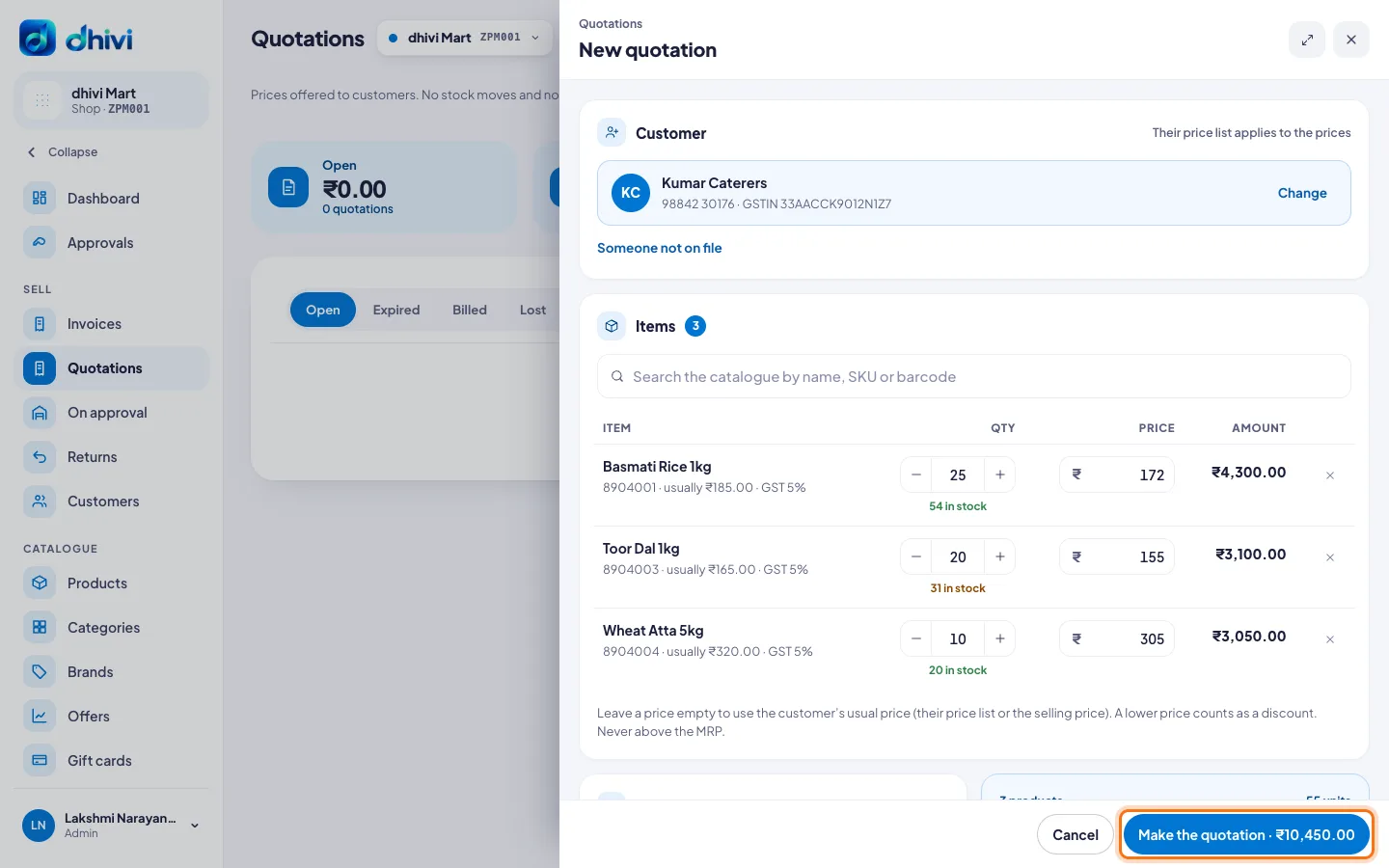
- Under Customer, select the customer. Not on file? Click Someone not on file and enter their Name and Phone.
- Under Items, search for each product and add it. Change the Qty.
- To quote a different price, enter it under Price. Leave it empty to use the customer's usual price.
- Under Details, set Valid till. Add a Note to the customer and Terms if you want to.
- Click Make the quotation. The button shows the total.
Send it
- Click the quotation in the list.
- Click Print or PDF, or Send on WhatsApp.
Bill it
- Open the quotation.
- Click Create invoice, check the bill and save it.
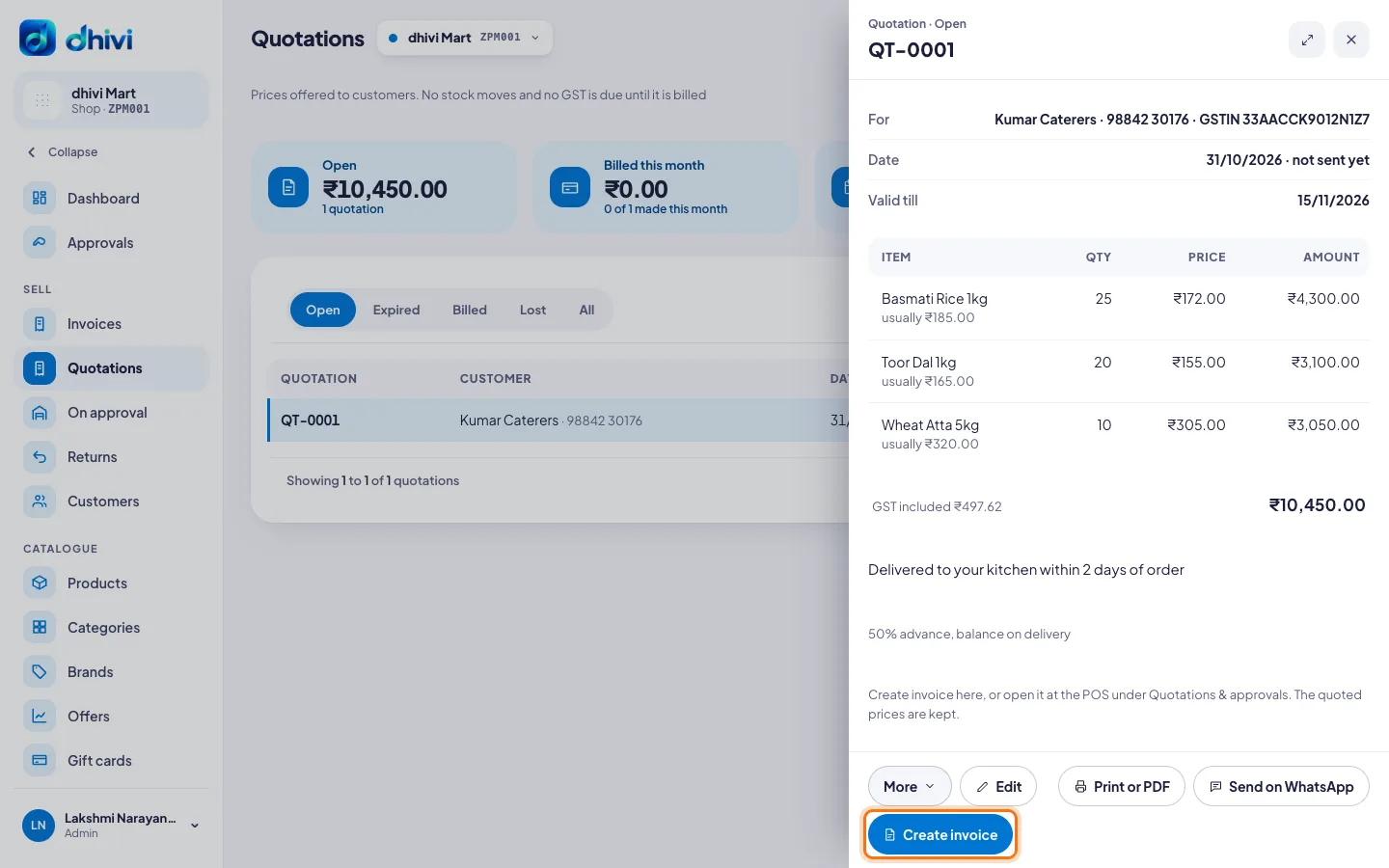
You can also bill it at the POS, under Quotations & approvals.
Good to know
- The tabs show Open, Expired, Billed, Lost and All quotations.
- Leave a price empty and the customer's price list, or the selling price, is used. A lower price counts as a discount. A price can never be above the MRP.
- After Valid till, the quotation is Expired and today's prices apply.
- Customer did not go ahead? Click More, then Mark lost, and enter a reason. To bring it back, click More, then Open again.
- To let the customer take the goods first, click More, then Send on approval. Bill those goods from the approval note.
- You can change a quotation with Edit while it is open.