Remove sample data
If you ticked Start with sample data when you opened your first shop, dhivi POS added ready-made products, customers and suppliers for your kind of shop. They are there so you can try a bill on the first day. Bills, payments and staff are never added, so your reports, GST and Tally start empty.
How to tell what is sample
In the back office, Products, Customers and Suppliers show a banner while you have sample data: Your shop has sample data. Each sample row has a Sample tag next to its name. Sample products sell at the POS like any other.
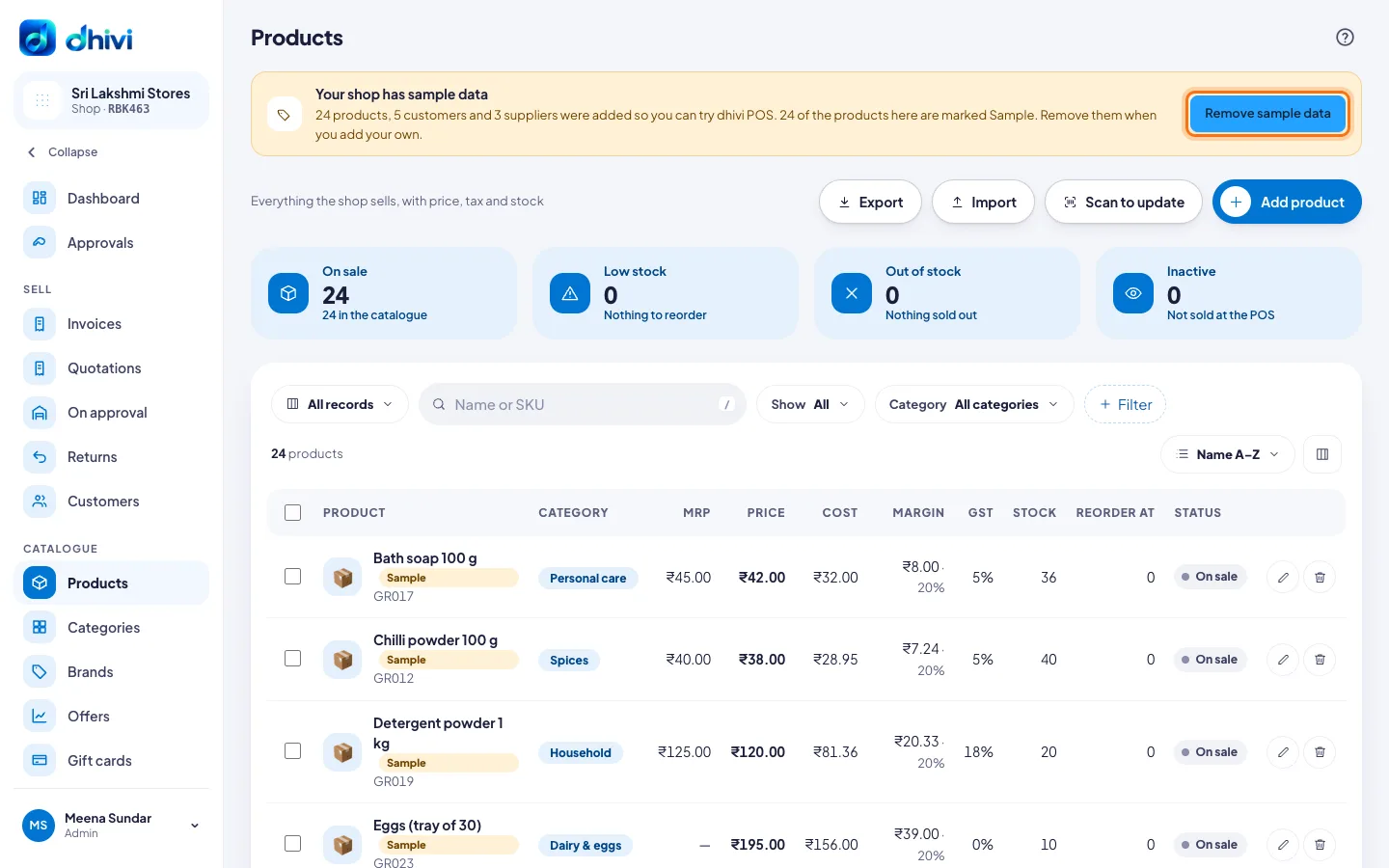
Remove it
Only an admin can remove sample data.
- Open Products, Customers or Suppliers in the back office.
- Click Remove sample data on the banner.
- Check the list of what is removed, and click Remove sample data.
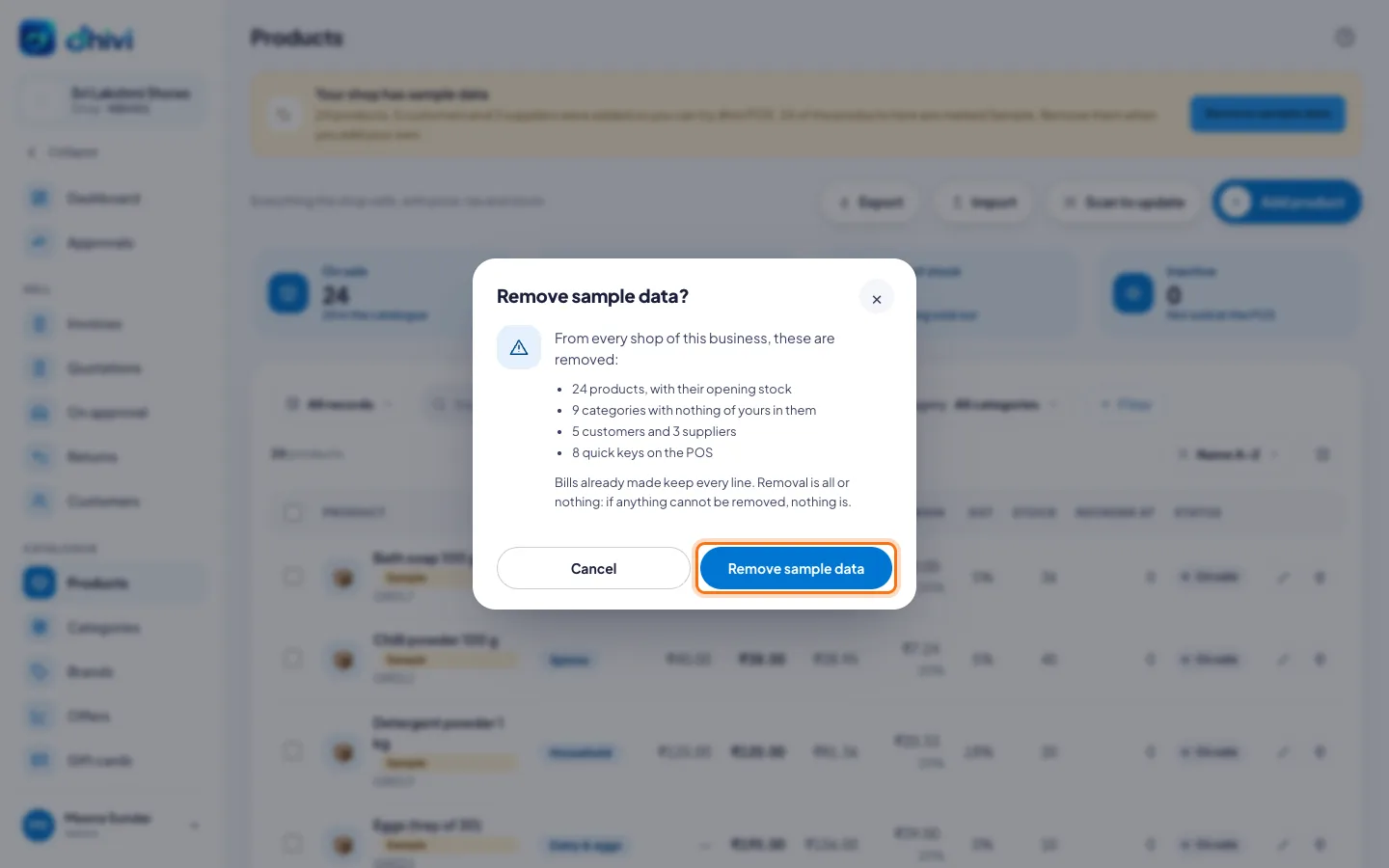
It is removed from every shop of your business in one step. If anything cannot be removed, nothing is.
What stays
A sample record becomes yours, and is never removed, when:
- it is on a real bill, a delivery or another record of yours
- you changed it — a new price, a new name
- an offer you made names it
- one of your own products is in a sample category
Bills already made keep every line, whatever is removed.
Good to know
- You can also just change the sample products into your own. Anything you change stays.
- Removed sample data cannot be brought back. Ask us if you want a fresh set.