Send bills, reminders and offers on WhatsApp and SMS
Messages sends WhatsApp and SMS messages to your customers when something happens in the shop: a bill is made, a payment comes in, a repair is ready, a new customer is added. Messages go through MSG91. Only an admin can set them up.
In the back office menu, under Grow, click Messages.
Before you start: templates
India needs every SMS template registered on DLT, and every WhatsApp template approved by Meta. Do that in MSG91 first. Then open the Templates tab:
- Click Add beside WhatsApp templates or SMS templates (DLT).
- Enter the Name in MSG91 exactly as MSG91 shows it. For SMS, enter the DLT template ID.
- Set Blanks to the number of blanks the template has:
{{1}},{{2}}in WhatsApp,{#var#}in SMS. - Under Kind, choose Service for bills, payments and repairs, or Promotional for offers and wishes.
- Under Languages approved, tick the languages it was approved in. Set its Status, and paste its Text for the preview if you want to.
- Click Save.
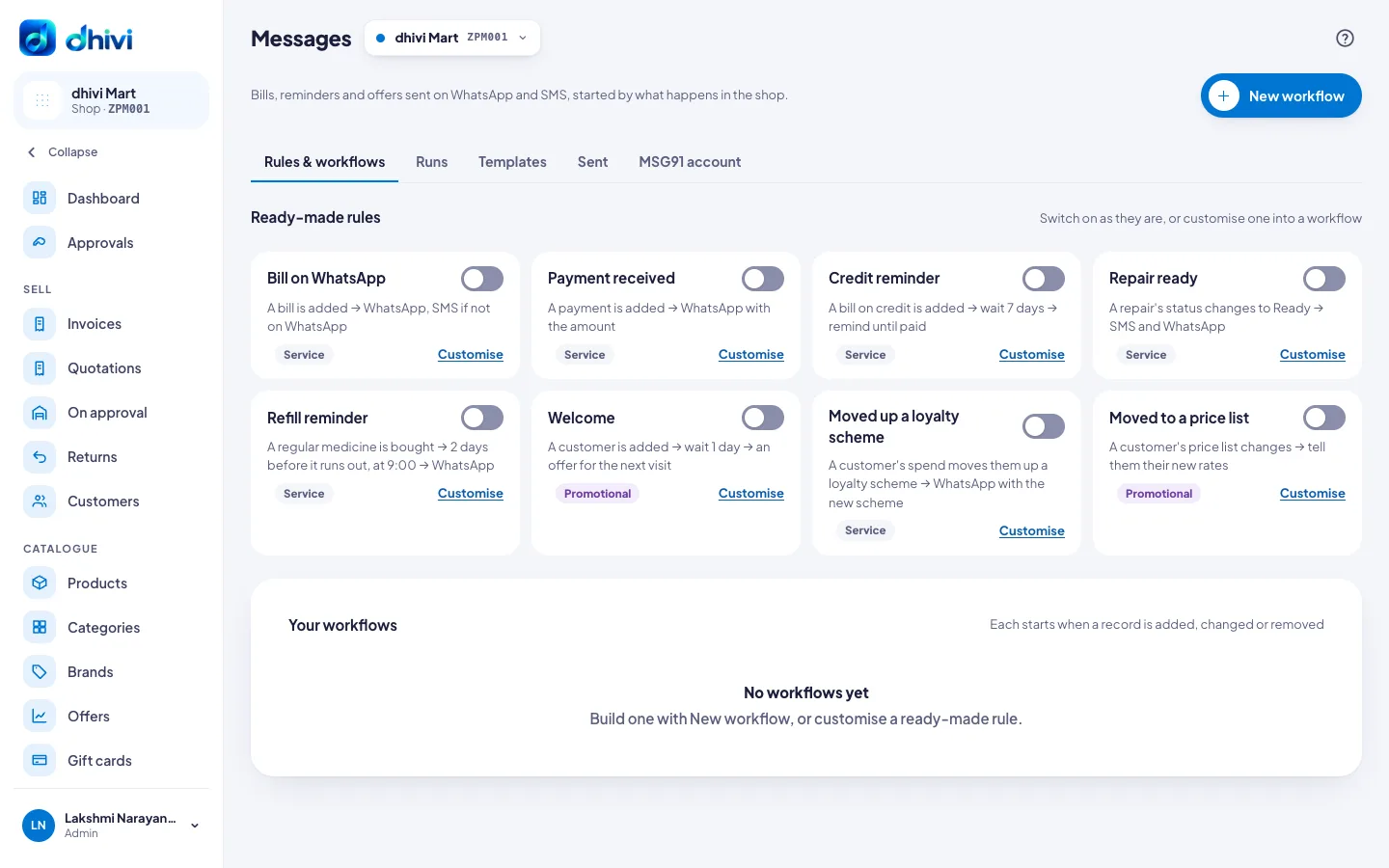
Switch on a ready-made rule
Under Ready-made rules, turn on the switch of the rule you want: Bill on WhatsApp, Payment received, Credit reminder, Repair ready, Refill reminder, Welcome, Moved up a loyalty scheme or Moved to a price list. The first time, choose the template it sends, and click Switch on.
To change a rule, such as another wait, another shop or another message, click Customise. It becomes your own workflow.
Build your own workflow
- Click New workflow. Type a name over New workflow at the top.
- Under When should it start?, choose the record under Which record, such as Bills, Payments, Customers or Repairs. Then choose What happens to it: Added, Changed (pick the field, and what it changes to) or Removed or cancelled.
- Under Only if, click Add a condition if it should start only for some records, for example Bill total at least ₹1,000. Under At these shops, click the shops it runs at. None ticked means every shop.
- Add steps from Add a step on the left. Each goes after the one selected:
- WhatsApp or SMS: to the customer, to the shop's phone, or to a number. Choose WhatsApp, then SMS to send an SMS when the customer is not on WhatsApp. Fill each blank of the template with a field, the shop's name, a date or fixed text.
- Wait: for minutes, hours or days; until a time of day; or until a date on the record. Turn on Skip Sundays or Stop waiting early if…, for example to stop a credit reminder once the bill is paid.
- Check, then two ways: different steps for Yes and No.
- Stop here.
- Click Save and switch on. Save keeps it as a draft.
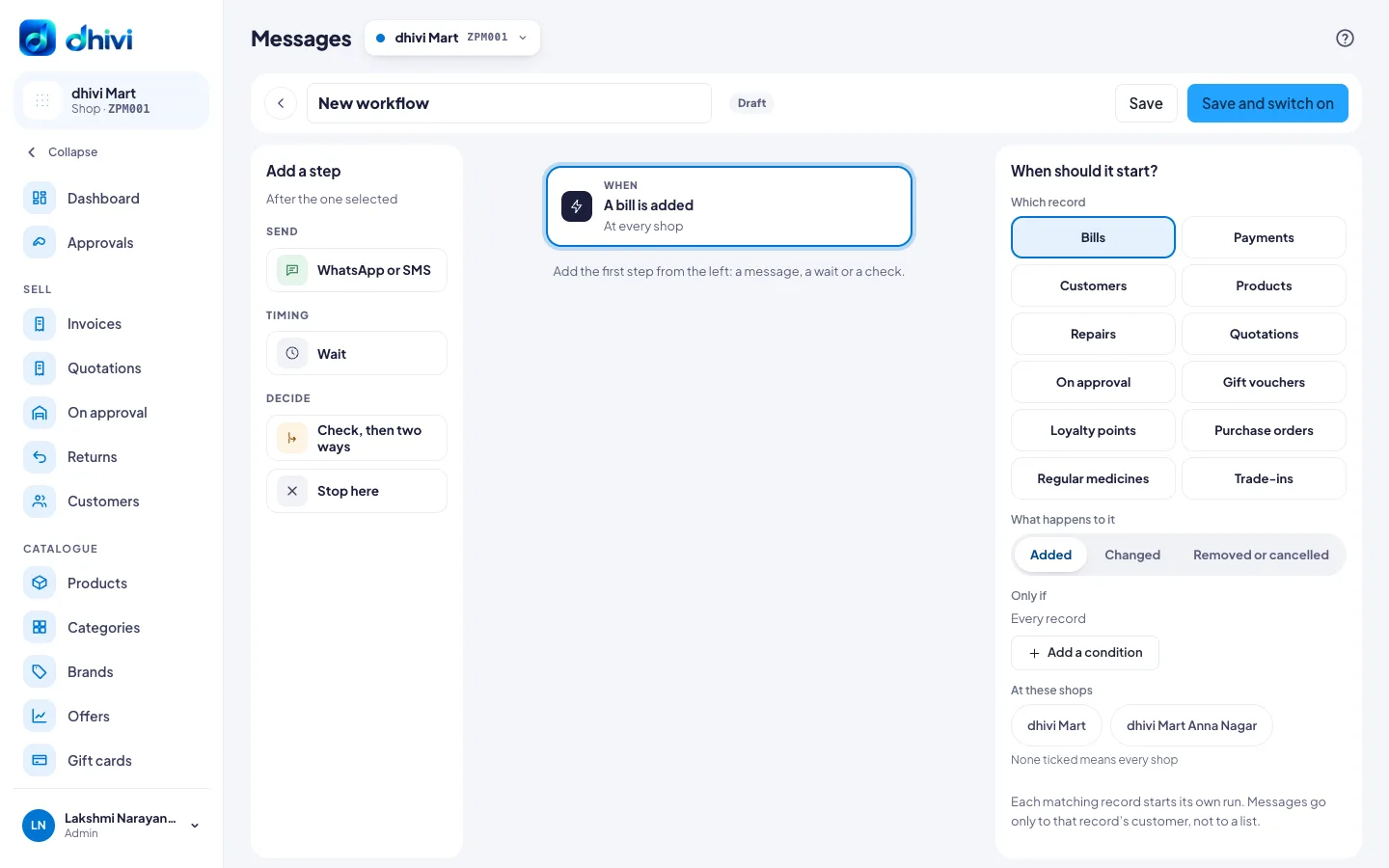
Each record that matches starts its own run, and the message goes to that record's customer. To change a workflow, open it, change it and click Save; records already on their way finish as they started.
See what happened
- Runs: every record in a workflow, where it is, and when its next step goes. Open one to see each step, or click Stop this run.
- Sent: every message, its status (Sent, Delivered, Read, Failed, Not sent) and why one did not go.
- Who said stop (on Sent): numbers that get no messages. Add a number when a customer asks you to stop.
Rules every message follows
- Promotional messages go only from 9 am to 9 pm, never to a customer who said stop, and at most once a day to the same customer from all your workflows together. Change how many a day on the MSG91 account tab.
- Service messages go at any hour, but not to a customer who said stop for that channel.
- A workflow that starts more than 500 runs in an hour pauses itself, for example after a big import, and says why. Check it, then switch it on again.
- A message never starts another workflow. If something outside dhivi POS changes the same record each time a message goes, and a workflow starts 10 times for that record in an hour, the workflow pauses itself and says why.
Your MSG91 account
On the MSG91 account tab, under Send messages through, choose:
- dhivi POS's MSG91: nothing to set up. Messages use dhivi POS's sender name and are charged to your plan.
- My own MSG91 account: enter your Auth key, your SMS sender ID (DLT header), your DLT entity ID and your WhatsApp number. MSG91 bills you directly. The auth key is kept locked and never shown again.
Click Save.