Print bills in your language
Give your products a second name in Tamil, Hindi, Telugu, Kannada or Malayalam, and print bills with it. The back office stays in English.
Steps
- In the menu, under Setup, click Settings, then Language.
- Under Second name for products, select the language. This applies to every shop of your business.
- Under Bills at this shop, choose English only, English and your language, or your language only. The sample below shows how a line prints.
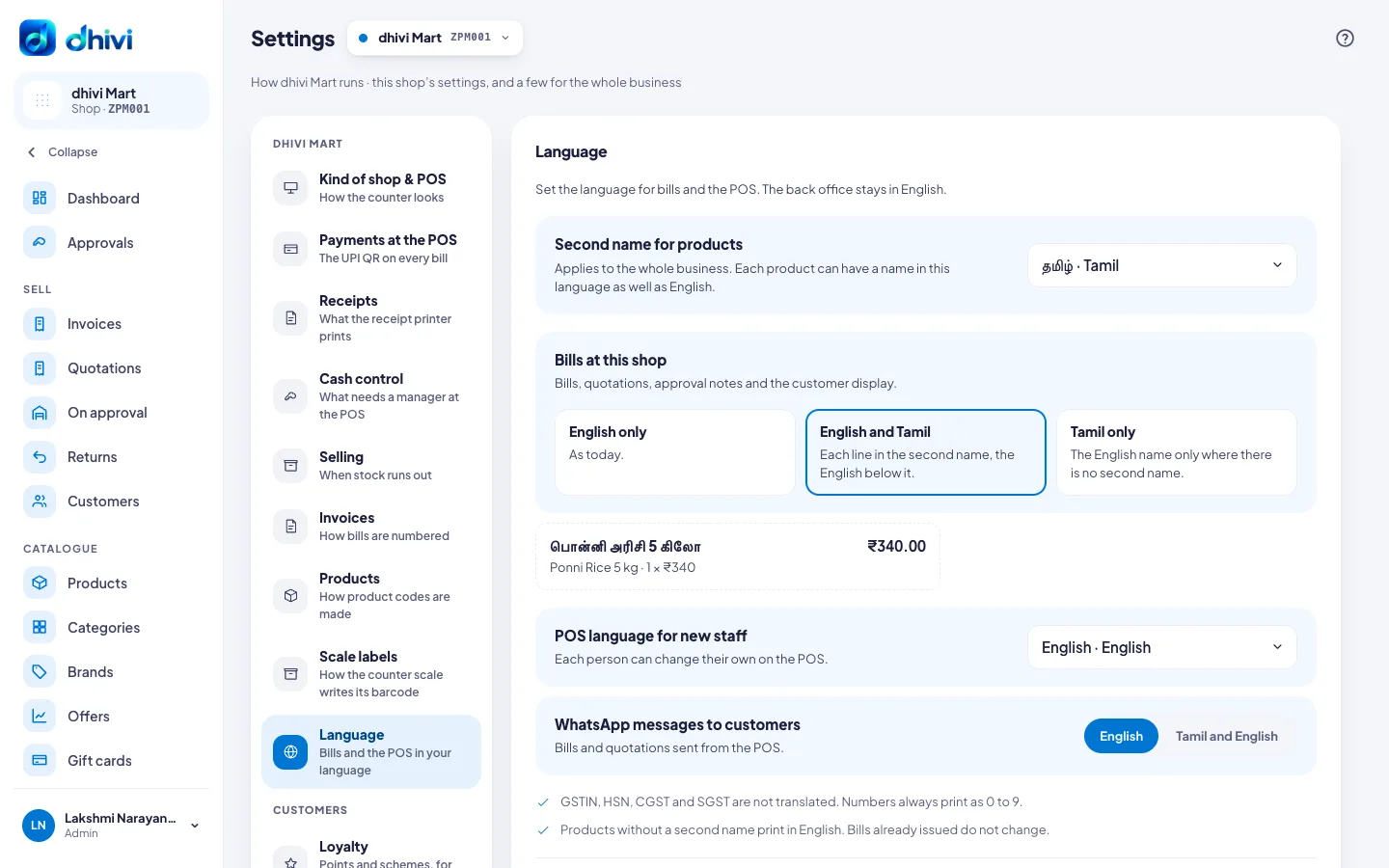
- Under POS language for new staff, select the language the POS starts in.
- Under WhatsApp messages to customers, choose English, or your language and English, for example Tamil and English.
- Click Save.
Add the second names
Open each product, click Edit, and enter its name in the second language. Once saved, the Language section shows how many products have one. Click Show the … without one to find the rest.
Good to know
- With your language only, a product with no second name prints in English.
- Bills, quotations, approval notes and the customer display use the bill language.
- Each person can change their own POS language on the POS.
- A language marked Not ready yet cannot be chosen for the POS yet.