Show the bill to the customer on a second screen
A screen facing the customer shows each item as you bill it, the total, and the UPI QR to scan. Use a second screen on the counter computer, or a tablet.
A second screen on the counter computer
- Click your initials at the top right, then Customer display.
- Under A second screen on this computer, click Open the window.
- Drag the window to the customer's screen and make it full screen.
This works without internet.
A tablet
- Click your initials at the top right, then Customer display.
- Click Pair a tablet. A six-letter code shows.
- On the tablet, open pos.dhivi.app/display and type the code.
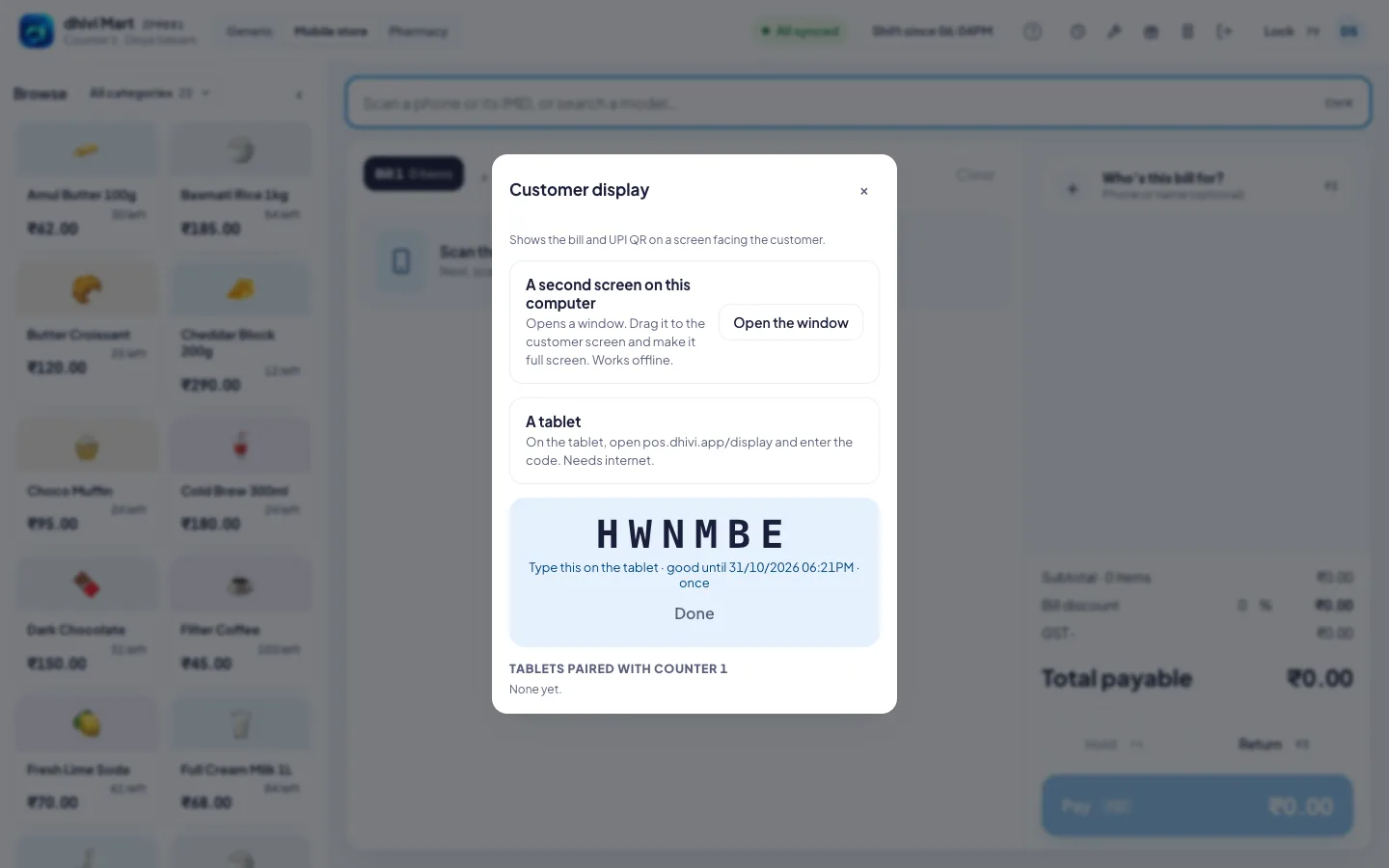
The code works once, for ten minutes. The tablet needs internet.
Good to know
- The tablets paired with this counter are listed under Tablets paired with. Click Unpair to stop one.
- On a phone, tap Shift at the top, then Customer display.