Close the shift
At the end of the day, count the drawer. dhivi POS compares it with the bills.
Count the drawer
- Click Shift since… at the top.
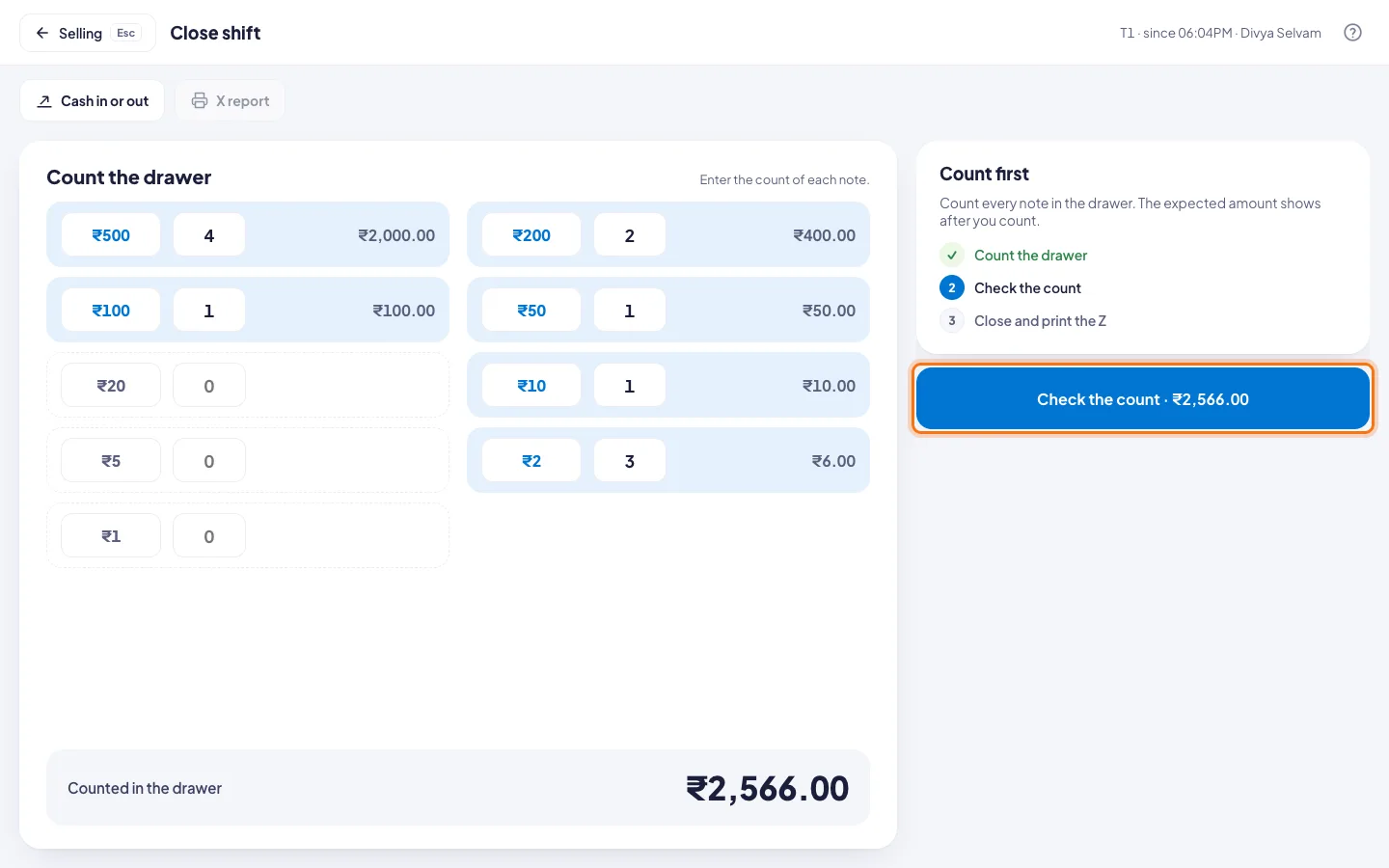
- Count every note and coin. Under Count the drawer, type how many of each.
- Click Check the count. The button shows what you counted, for example Check the count · ₹2,566.00.
Check and close
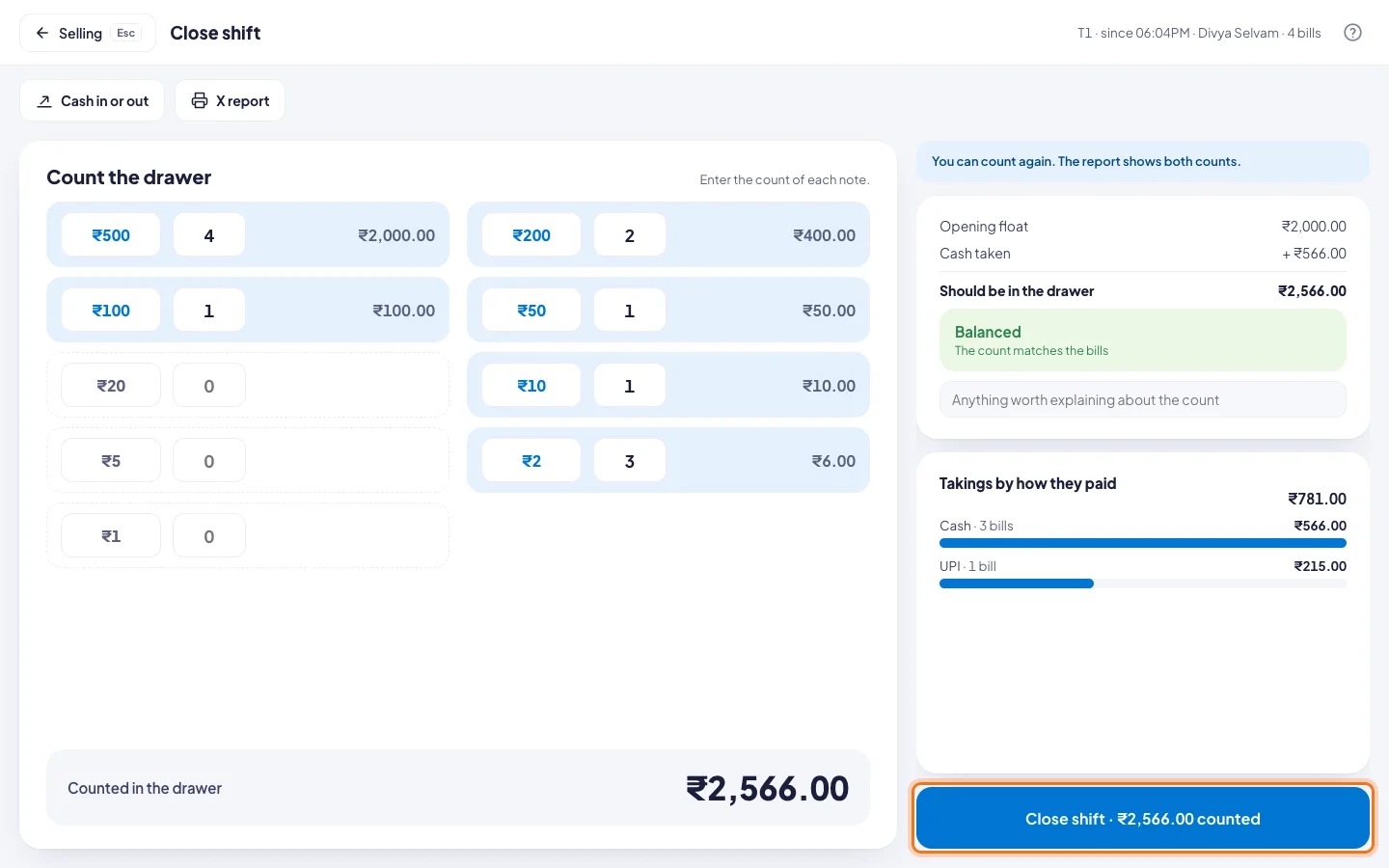
- dhivi POS shows what Should be in the drawer: the opening float, plus cash sales, minus refunds and pay outs.
- Balanced means the count matches. If it is short or over, write why in the note.
- Click Close shift.
The Z report
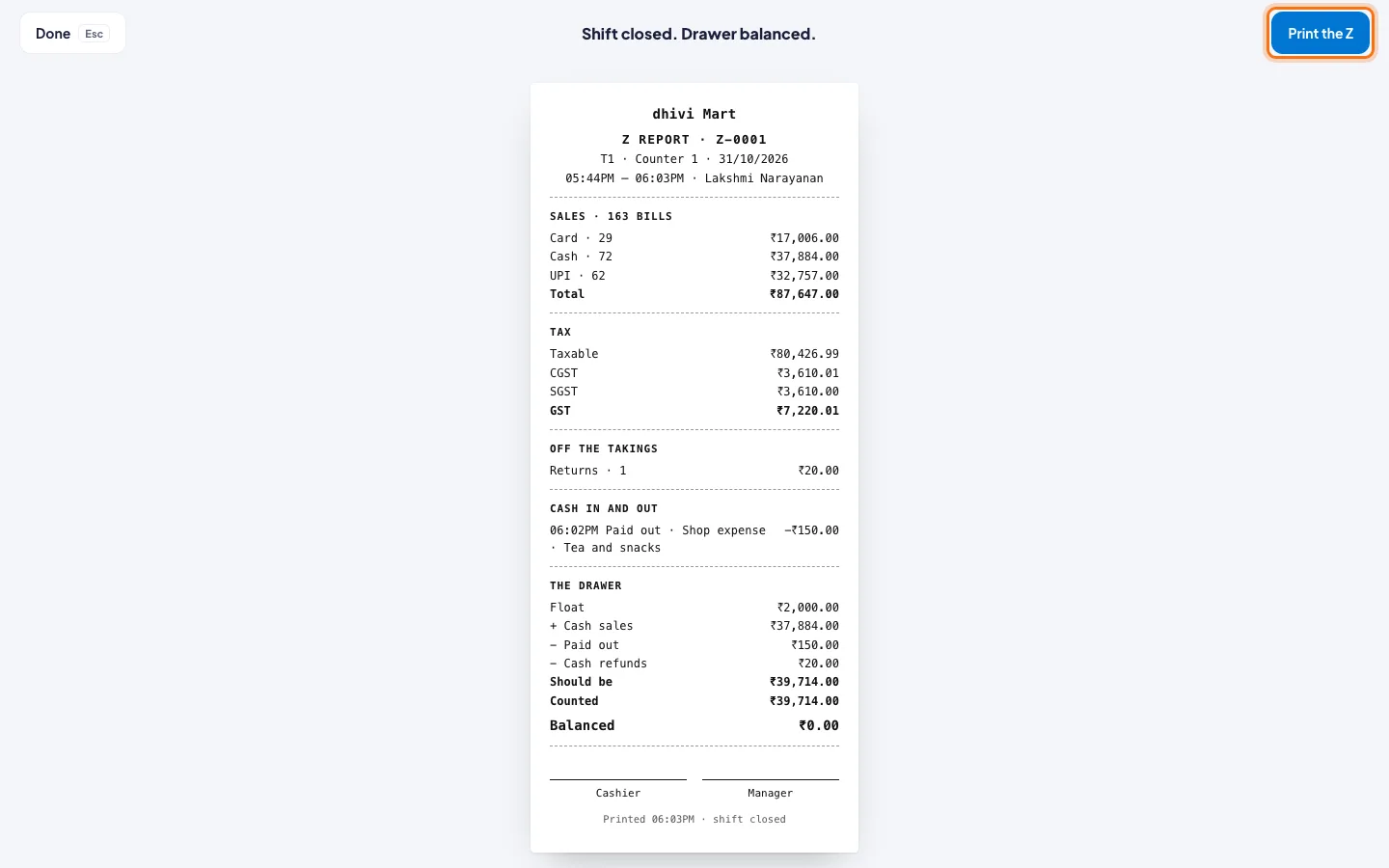
- The Z report shows the day's sales by how they were paid, GST, returns, cash in and out, and the drawer. Click Print the Z to keep a copy, then Done.
Good to know
- A cashier sees what the drawer should hold only after counting. This keeps the count honest. Managers and owners see it straight away.
- Miscounted? Count again. The report shows both counts.
- A big difference needs a manager to close the shift.
- X report at the top prints the shift so far, any time. It does not close the shift.