Approve from your phone
When a cashier goes over their limit, the POS asks a manager to approve it. The manager can enter their PIN at the POS, or approve from their phone wherever they are.
Turn it on
Only an admin can do this.
- In the back office menu, click Approvals, then Settings at the top right. It is also in Settings, under Whole business.
- Turn on Let managers approve from anywhere.
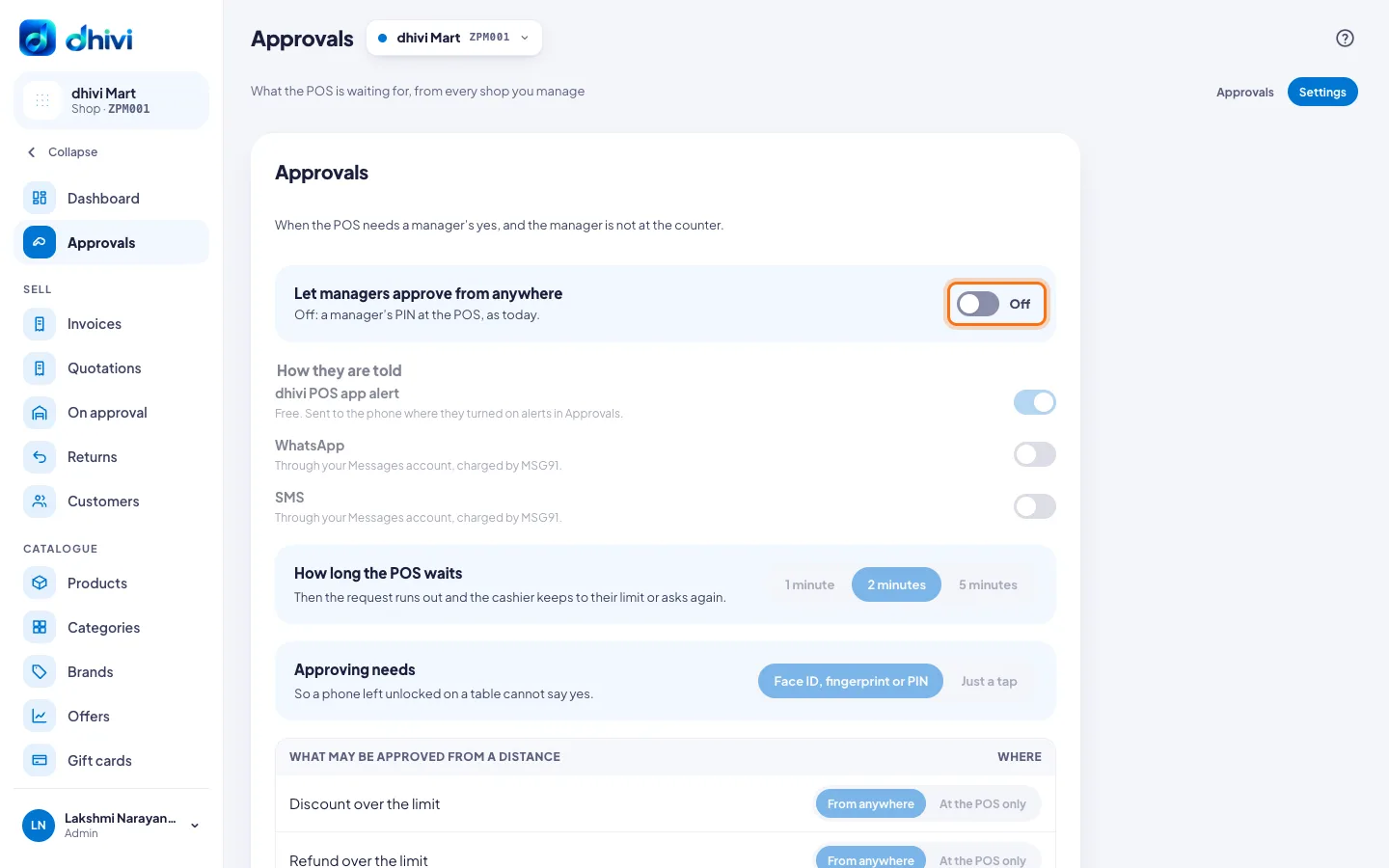
- Under How they are told, turn on dhivi POS app alert (free), WhatsApp, SMS, or more than one. WhatsApp and SMS go through your Messages account and are charged by MSG91. For them, choose an approved template with four blanks: who asks, the shop, what for, and the link.
- Under How long the POS waits, choose 1 minute, 2 minutes or 5 minutes.
- Under Approving needs, choose Face ID, fingerprint or PIN, or Just a tap.
- Under What may be approved from a distance, choose From anywhere or At the POS only for each, and click Save.
These three always stay at the POS: cancelling a bill, opening the drawer without a sale, and closing a shift short or over.
Who can approve is set in Cash control: managers, admins and counter supervisors.
Get alerts on your phone
- Open the back office on your phone.
- On an iPhone, first add it to your home screen: tap Share, then Add to Home Screen, and open it from there. Until then, the button says How to get alerts on this iPhone. Alerts on an iPhone need iOS 16.4 or later.
- Open Approvals and tap Turn on alerts on this phone. Allow notifications when the phone asks.
- To approve with your face or finger, tap Use Face ID to approve (or Use your fingerprint to approve) once.
At the POS
When the POS asks for a manager's yes:
- If a manager is at the counter, they tap their name and enter their PIN, as before.
- Otherwise, under Ask a manager, wherever they are, choose who to ask, write why, and tap Send. The first manager to answer decides.
While you wait, you can tap Hold the bill and serve the next customer. The POS tells you when the manager answers. When you open the held bill and take payment again, the approval is used without asking again.
If the manager says no, the bill goes back to your limit. If nobody answers in time, keep to your limit or ask again.
Approve or decline
Tap the alert, or open Approvals in the back office. You see what is asked, who asked, the bill, the customer and why. Add a note for the cashier if you want to, then tap Approve or Decline. Approving asks for Face ID, your fingerprint or your PIN.
An approval works once, for that bill only.
The history
Approvals lists every approval under History: those given with a PIN at the POS, those from a phone, those declined and those nobody answered. It shows who asked, who answered and from where. Tap Download for a spreadsheet.