Record your expenses
Record rent, salaries, electricity and other costs of running the shop. They come off your profit in Profit & loss. Supplier bills for goods stay in Payables.
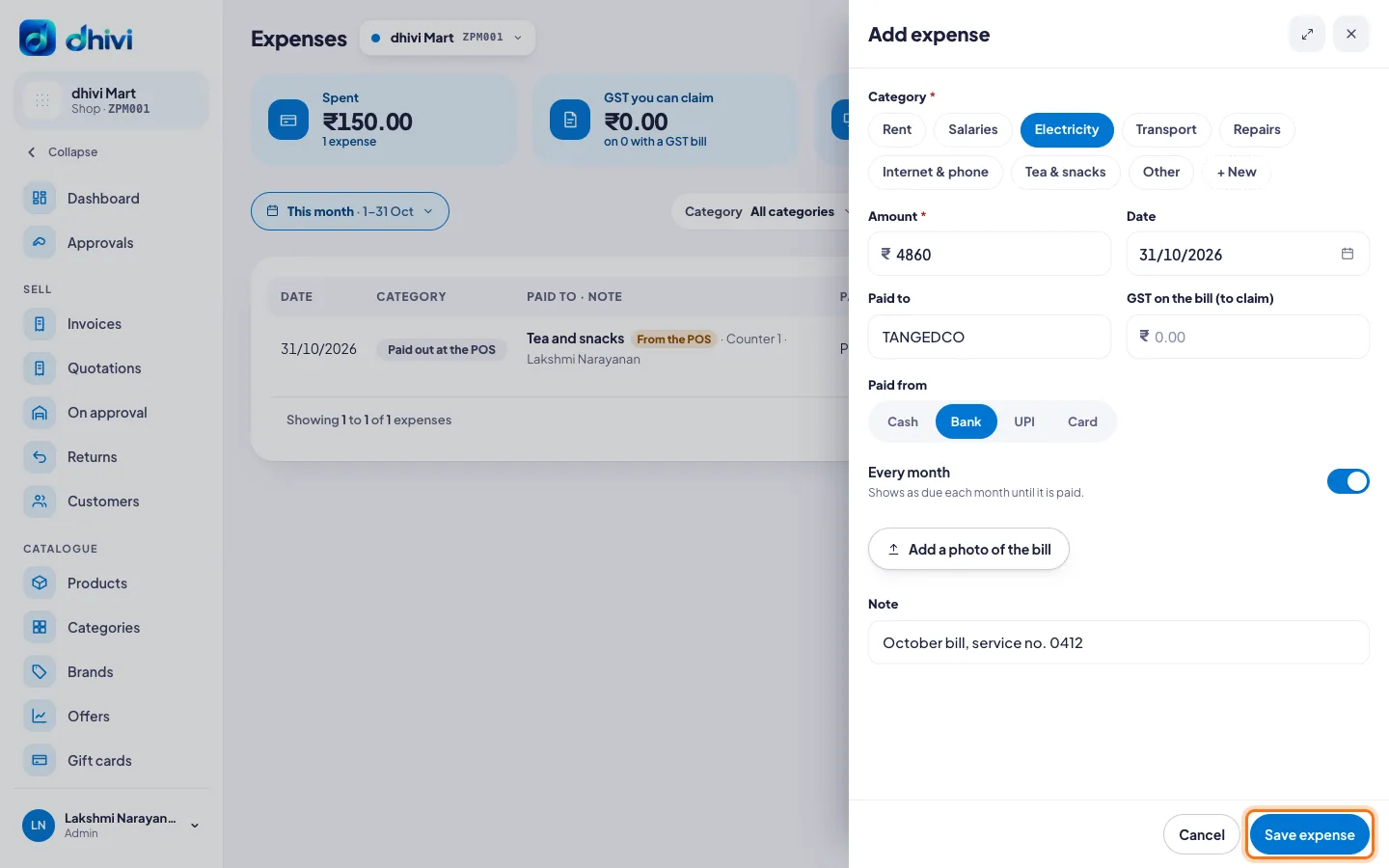
Add an expense
- Click Expenses under Money in the menu.
- Click Add expense.
- Under Category, select one, like Rent or Electricity. Or add a new one.
- Enter the Amount and Date, and who it was Paid to.
- If the bill has GST you can claim, enter it under GST on the bill (to claim).
- Under Paid from, choose Cash, Bank, UPI or Card.
- For rent and other costs paid every month, switch on Every month.
- Click Add a photo of the bill if you want to keep a copy.
- Click Save expense.
Pay a monthly expense
An expense set to Every month shows as due each month until it is paid. Click Mark paid next to it, check the amount, and click Save expense.
Good to know
- Cash paid out of the drawer at the POS as an expense shows here by itself, marked From the POS.
- Choose the dates and a Category at the top to filter the list.
- By category shows what each kind of cost added up to.
- Click Categories to rename them or add new ones.
- To change or delete an expense, click it.