Connect your website and other tools with an API key
An API key lets another tool, such as your website shop, your accountant's software or your own app, read or change your shop's data. Each key can do only what you tick, at the shops you pick. Only an admin can make keys.
Make a key
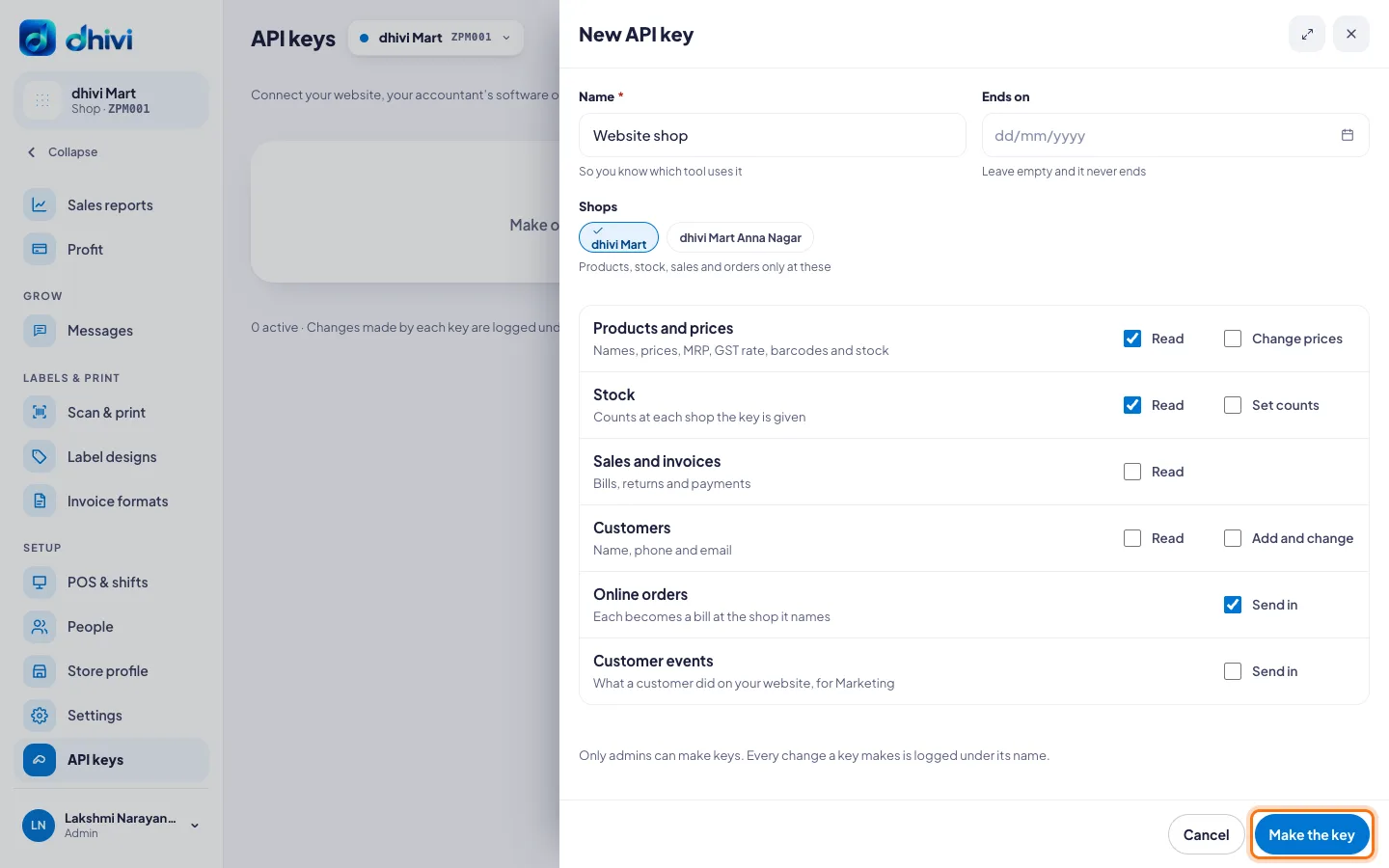
- In the menu, under Setup, click API keys. It is also in Settings, under Whole business.
- Click New key.
- Enter a Name, so you know which tool uses it, for example Website shop.
- Under Shops, click the shops it may use. It reaches no other shop.
- Tick what it may do:
- Products and prices: Read, or Change prices.
- Stock: Read the counts, or Set counts.
- Sales and invoices: Read bills, returns and payments.
- Customers: Read, or Add and change.
- Online orders: Send in an order. It becomes a bill at the shop it names.
- Customer events: Send in what a customer did on your website, for Marketing.
- If the key should stop working on a date, set Ends on. Leave it empty and it never ends.
- Click Make the key, then Copy. The key is shown only once. Put it in your tool.
Look after your keys
- Open a key to see when it was last used and every change it made.
- New secret: if a key may have been seen by someone else. The old one stops working at once.
- Revoke: when you stop using a tool. This cannot be undone. Make a new key to connect again.
- Tell my app when: your tool can be told the moment a bill is made, stock changes or a customer is added. See Messages to your app.
Good to know
- Use one key per tool, so you can stop one without stopping the others.
- A key's calls are limited to 600 a minute.
- For the person building the tool: The dhivi POS API, start here.