Add a staff member
Give each person their own sign-in. Every bill and stock change then shows who did it.
Steps
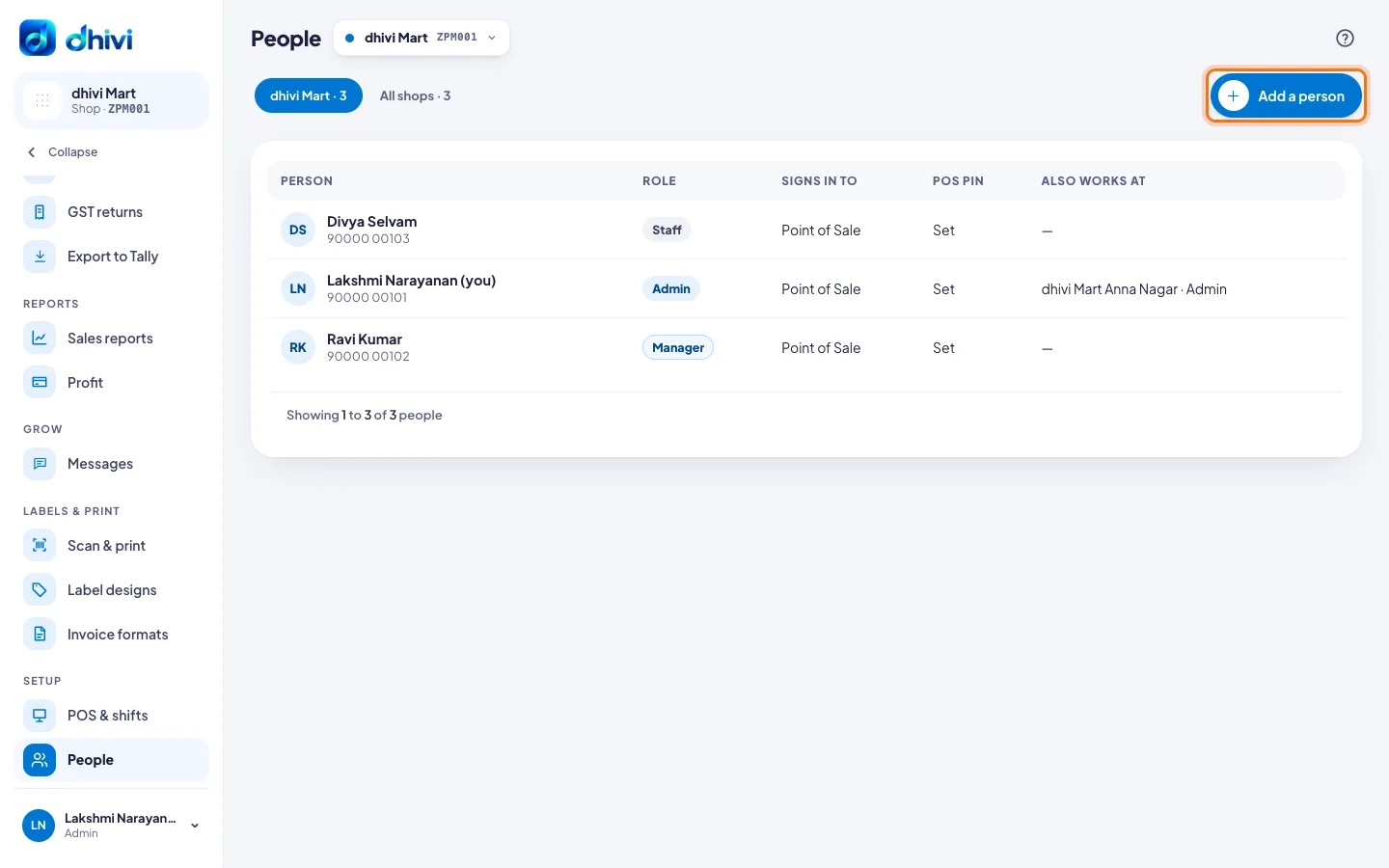
- In the back office, pick the shop they will work at in the shop picker beside the page title.
- In the menu on the left, under Setup, click People.
- Click Add a person.
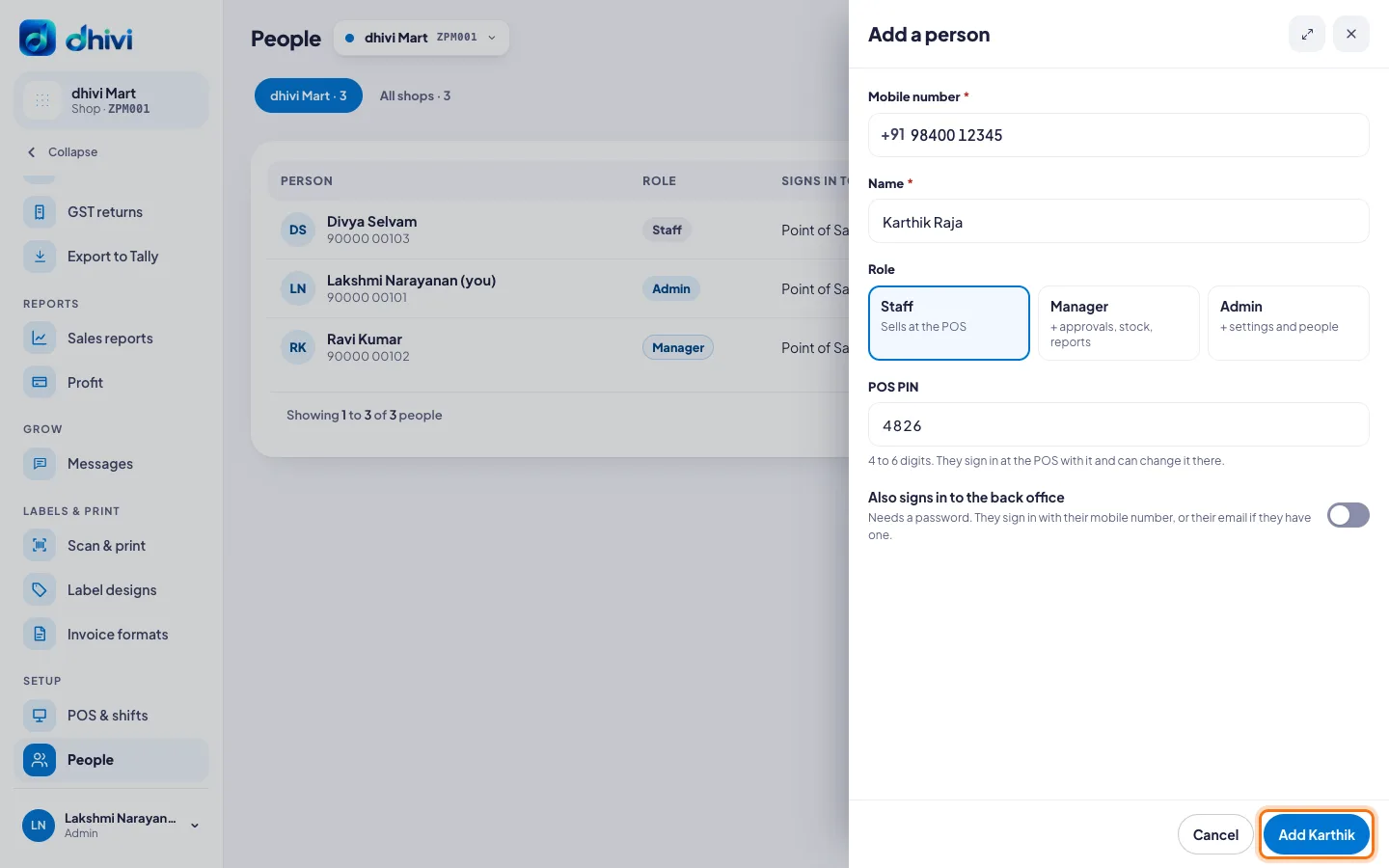
- Enter their Mobile number. They sign in with it.
- If they already work at another of your shops, they are found and not added twice. Pick their role here and add them.
- For someone new, enter their Name.
- Pick a Role:
- Staff – sells at the POS.
- Manager – also approvals, stock and reports. A manager can add Staff and Managers to their shop.
- Admin – also settings and people. Only an admin can make someone an admin.
- Enter a POS PIN of 4 to 6 digits. They sign in at the POS with it and can change it there.
- If they will also use the back office, turn on Also signs in to the back office. Enter a Password of at least 8 characters. Email is optional.
- Click Add and their name, for example Add Karthik.
Change someone, or reset their PIN
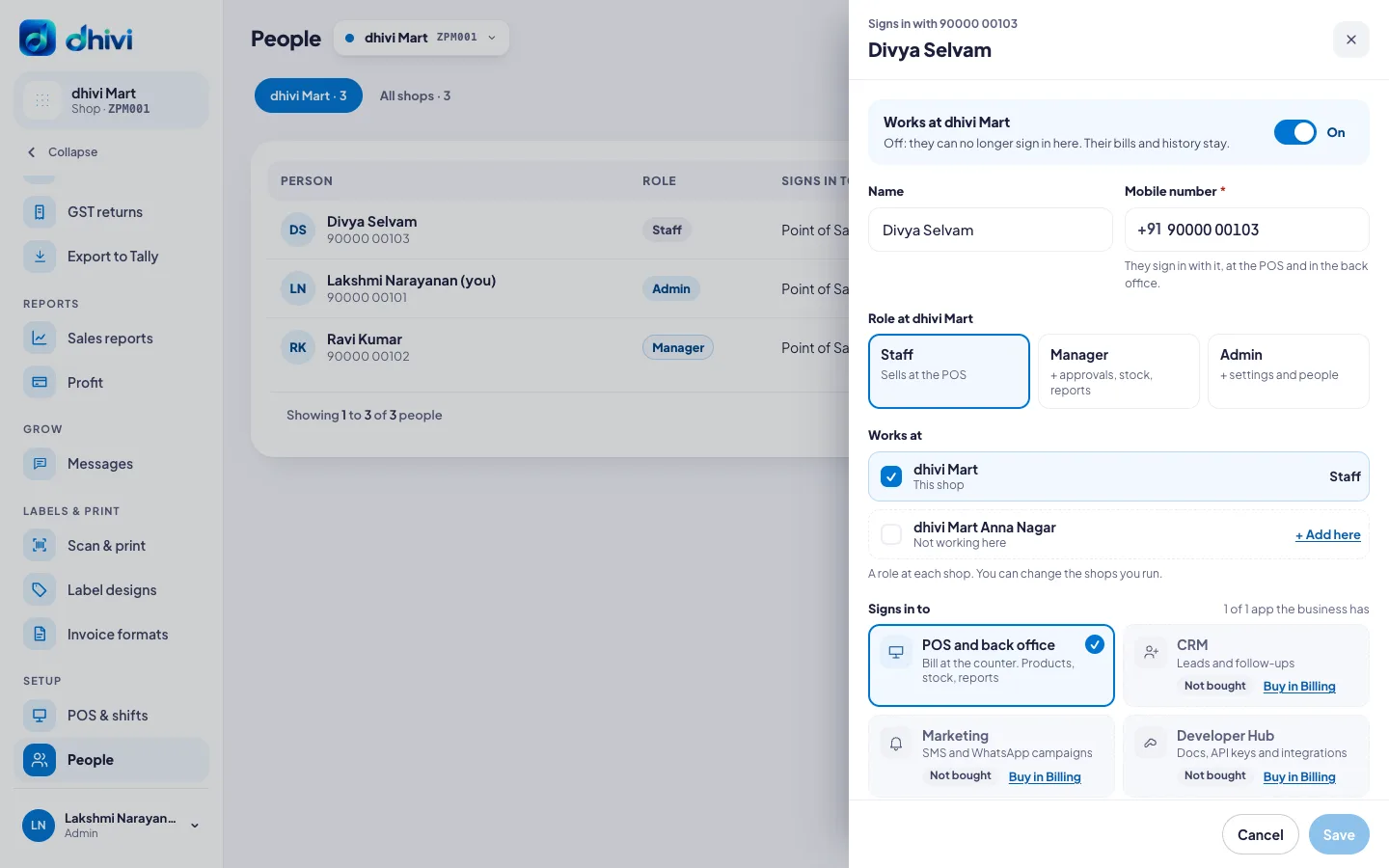
Click the person in the list. You can change their name, mobile number and role, the shops they work at, and which apps they sign in to. Click Reset PIN or Reset password to give them a new one. Under Extra access, click + Add to give more than their role allows. Click Save.
Good to know
- Staff sign in with their mobile number, or their email if they have one, and their PIN or password. Tell them their PIN.
- The same PIN works at every shop they work at.
- All shops at the top shows everyone at every shop you run. Under Works at, click + Add here to add a person to another of your shops.
- To stop someone signing in at this shop, open them and turn off Works at this shop. Their bills and history stay.
- Extra access is set up for the whole business in your account, under Extra access.